
How to design your offers: style, colours and text
Make AppSell offers match your store: pick a style, set colours, change any wording and adjust size — all in the funnel editor, with a live preview.
Every AppSell offer is designed in the Funnel Editor — the last step when you create a funnel. Settings are on the left and a live preview of your store is on the right, so you see each change as you make it. This guide covers product upsell offers in detail, then the differences for the other funnel types.
Where to find the design settings
Create a funnel and continue to the Design step, or open an existing funnel from My funnels with Edit and go to its last step.
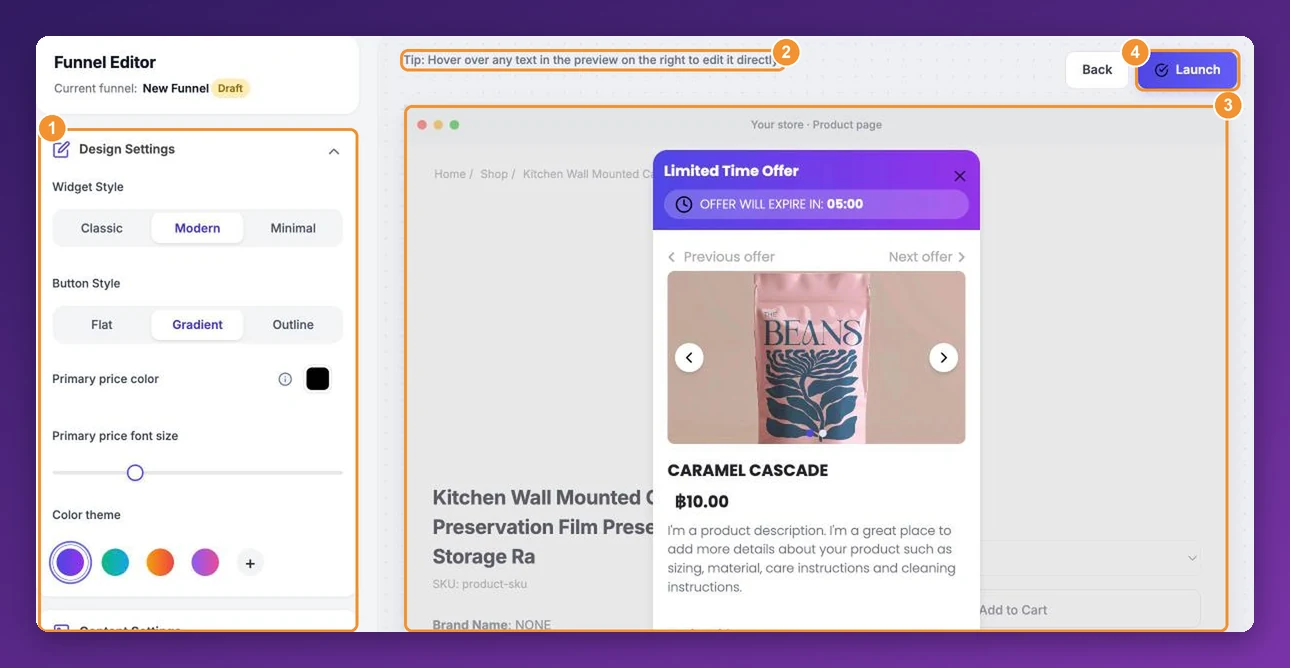
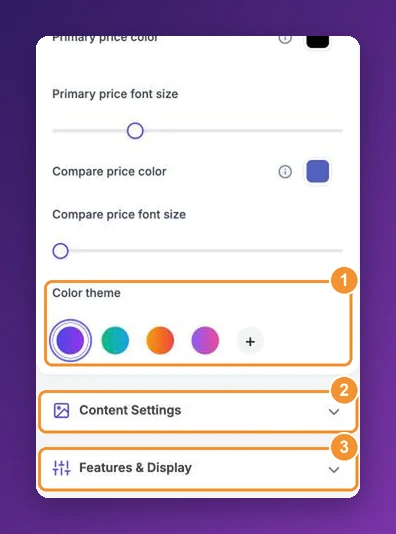
The settings for a product upsell are grouped into three sections: Design Settings (open when you arrive), Content Settings and Features & Display. Nothing is saved until you click Launch on a new funnel, or Save changes on one you're editing.
Pick a style
Under Widget Style, choose Modern or Minimal:
Modern has a coloured header with the headline and countdown, a large product image and a bold button. It stands out — good for popups.
Minimal is lighter, with the countdown as a banner and the product details in a simple column. It blends into most themes — good for sections inside the page.
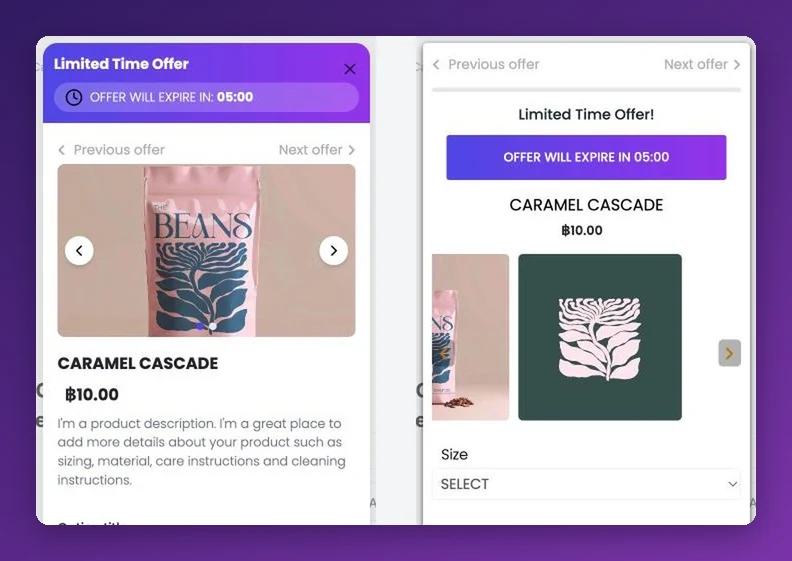
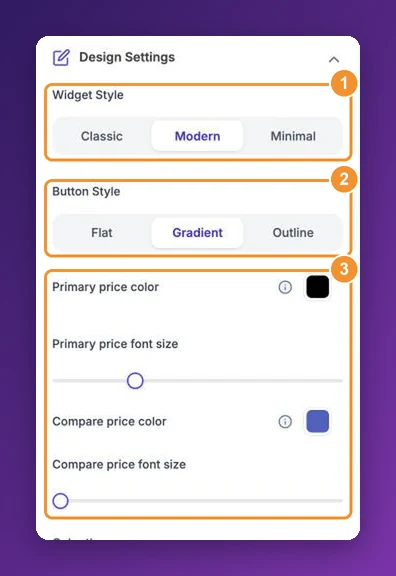
With Modern, also pick a Button Style: Flat (one solid colour), Gradient or Outline. With Minimal, the button takes its colours from your colour theme.
Colours and prices
Color theme — four ready-made colour pairs (blue-purple, green-teal, orange-red and purple-pink) colour the button, the countdown and the Modern header in one click. Click + to choose your own: the button background and text, the timer background and text and, for Modern, the popup header background and text.
Primary price color and Primary price font size — the main price the shopper pays. When the product has a discount, this is the discounted price.
Compare price color and Compare price font size — the crossed-out original price. These only appear once at least one product in the offer has a discount.
Tip: use your store's main button colour for the theme. Offers that look like part of your store get more clicks than ones that look like an ad.
Change the wording
Most text is edited directly in the preview. Hover over the headline, the countdown text, the button or the Previous offer / Next offer links, click it, type your own words and click the save icon next to the field.
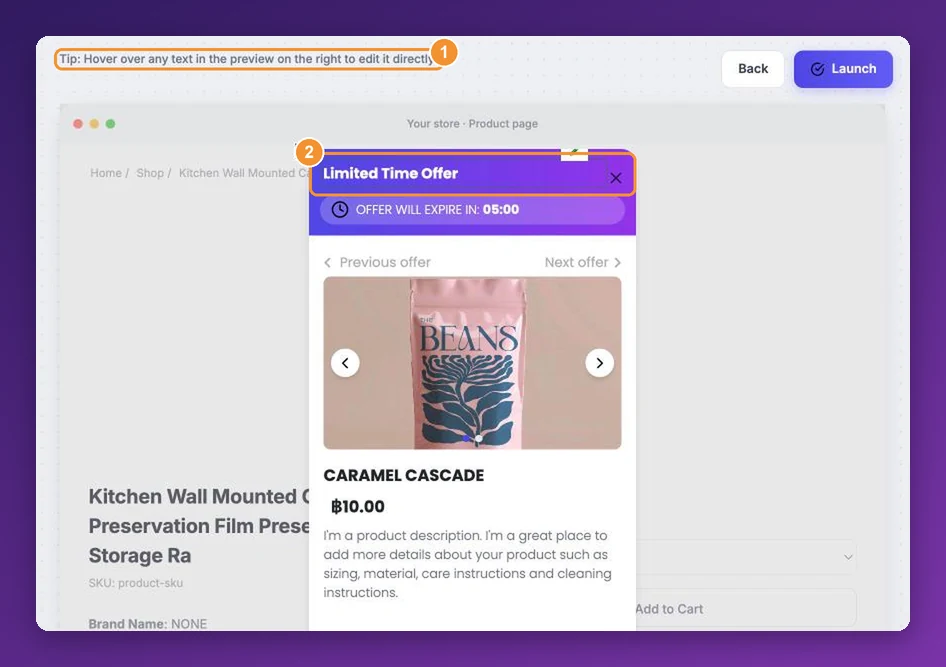
Click the save icon after each change. Clicking somewhere else in the offer cancels the edit.
The headline you type is used for every product in the offer.
Avoid straight double quotes (") in edited text — they cut the text short if you edit it again later.
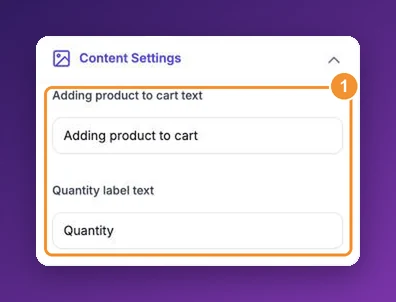
A few texts are fields in Content Settings instead:
Adding product to cart text or Redirecting to checkout text — shown on the button while the product is being added. Which one you see depends on where the offer sends the shopper (cart or checkout).
Quantity label text — the label above the quantity selector.
See offer button text — for popups shown as a corner Notification, the button that opens the offer. Change it here rather than in the preview.
For more on editing text, including writing offers in another language, see offers in your store's language.
Size, timer and product description
Features & Display holds everything that isn't colour or text:
Show Timer and its length — see how to add a countdown timer.
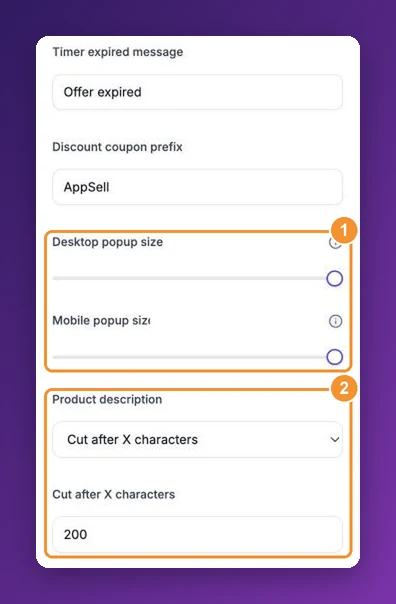
Discount coupon prefix — the start of the discount codes this funnel creates, up to 13 characters. See how to update your discount code prefix.
Desktop popup size and Mobile popup size (or section size for sections) — shrink the offer to between 70% and 100% of its full size, separately for desktop and mobile. See how to change the offer size.
Product description — show it in full, hide it, or Cut after X characters (200 by default). With the Modern style, use Cut after X characters to keep descriptions short; hiding them works with Minimal.
Bundles, volume discounts and cart offers
Other funnel types have their own design panel:
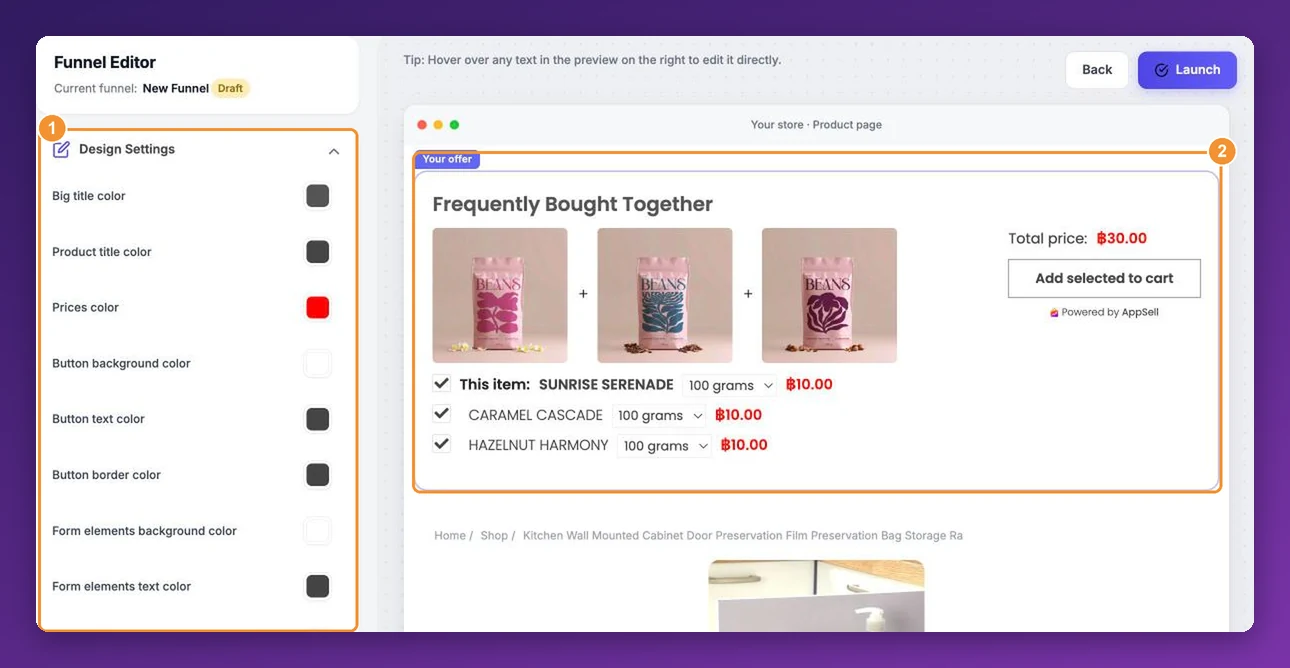
Frequently bought together — Design Settings holds the colours: the big title, product titles, prices, the button (background, text and border), the form elements such as option menus (background, text and border), other texts and the background. Edit the title, Total price:, This item: and the button text in the preview. See frequently bought together.
Volume bundle discount (Wix) — Layout & Theme sets a vertical or horizontal layout and, for vertical, one of three themes, and the sections below style the block title, the offers, prices and the Add to cart button. The texts are fields in the bundle settings step. See volume bundle discounts.
Cart page and side cart offers (Wix) — a compact list with its own Widget Settings: heading text and colour, button text and colour, the discount code label and the texts shown while adding. These are fields; text in this preview can't be edited by hovering. See cart and side cart offers.
Design tips that sell
Keep the button short and specific — Add for $9 or Yes, add it beats a long sentence.
One clear headline. Say what the shopper gets: Complete the set — save 10%.
Use a discount and show it. The crossed-out price is the strongest signal on the offer; make the compare price visible but quieter than the main price.
Check it on a phone. Most shoppers will see the mobile version — lower the mobile size if the offer feels crowded.
Preview on your real store before you leave it running. Your theme's fonts and spacing can change how it looks — see how to preview and test a funnel.
Frequently asked questions
How quickly do design changes reach my store?
Once you click Save changes (or Launch), usually within a minute or so. Reload your store page to see them.
Why does the offer look slightly different on my store?
The preview is a stand-in page. On your store, the offer uses your theme's fonts and sits inside your own layout. Always check the result on the live page.
Can I change the font?
There's no font setting in the editor. Offers use clean default fonts, and you control colour and price sizes.
Can I copy a design to another funnel?
Yes — Duplicate the funnel from its ⋮ menu in My funnels, then change the products. See how to manage your funnels.
Still stuck?
Tell support what you were doing and what happened instead — a store URL and a screenshot of the funnel settings usually resolves it in one reply.
Contact support