
How to show offers in your store’s language
Write AppSell offers in any language: which texts you can change, where to change them, how product names and prices appear, and tips for multilingual stores.
AppSell offers are written in English by default, but you can retype almost everything a shopper reads in your own language. Here's where to change each text, and what to know if your store uses more than one language.
How language works in AppSell
Each funnel has one set of texts. Whatever you type is what every shopper sees.
AppSell doesn't translate automatically and doesn't switch language with your store's language menu.
You can type in any language and alphabet — accents, Cyrillic, Greek, Hebrew, Arabic, Chinese and so on.
Where to change each text
All of these are in the Funnel Editor, the last step of a funnel (open an existing one with Edit).
Product upsell offers — hover over the headline, the countdown text, the button or Previous offer / Next offer in the preview, click and type. Under Content Settings, change the loading text (Adding product to cart or Redirecting to checkout), the Quantity label text and the See offer button text. The Timer expired message is under Features & Display.
Checkout sections — the button, previous/next, quantity and variants labels and the header are fields in Content Settings.
Frequently bought together — hover over the title, Total price:, This item: and the button in the preview.
Volume bundles — the block title, tier titles, Standard price, Most popular, Buy and save, Add to cart, the success message and the discount label at checkout are fields in the bundle settings.
Cart and side cart offers — the heading, button, discount code label and the texts shown while adding are fields in Widget Settings.
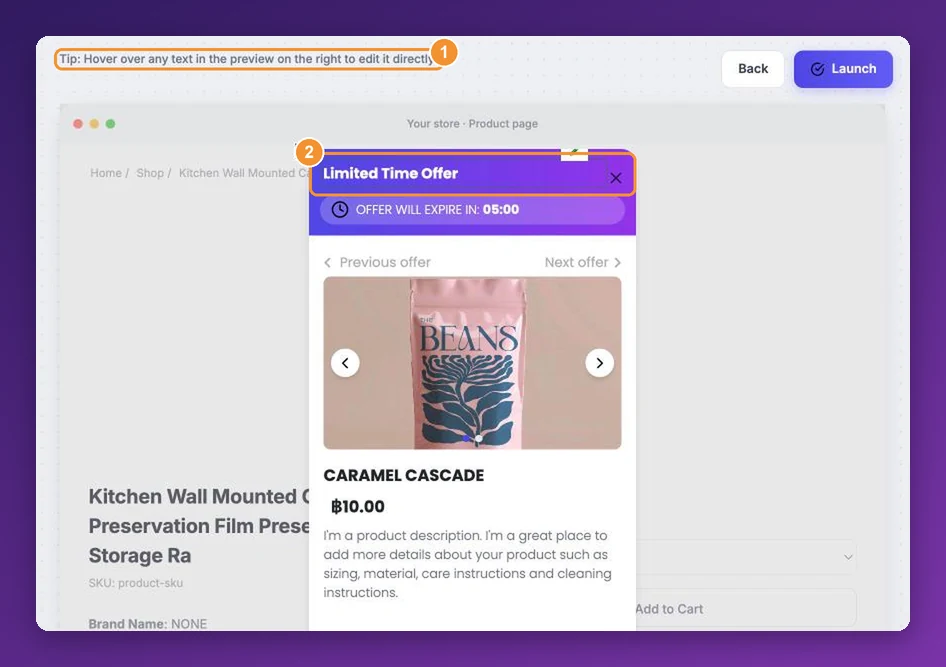
After editing text in the preview, click the save icon next to it, then Save changes (or Launch). More detail: change the wording.
Texts you can’t change yet
A few short labels and messages are still shown in English:
The Choose placeholder in option menus, and Product details / About this item in Modern sections.
Error messages, such as asking the shopper to choose an option.
The OFF badge on volume bundle tiers and the word Save on checkout offers.
The option picker and button states inside side cart and cart offers.
Powered by AppSell, where it's shown.
If one of these matters for your store, tell us — it helps us decide what to make editable next.
Product names and prices
Product names come from your store catalog in its main language, and are saved with the funnel. If you rename a product, open the funnel and click Save changes to pick up the new name.
Prices use your store's currency symbol, written before the amount with a dot for decimals — for example €10.80.
Multilingual stores
If your Wix site has several languages, an offer shows the same text in every language. Write it in the language most of your shoppers use, or keep the words short and simple — a price, a product image and + Add work in any language.
For right-to-left languages such as Hebrew and Arabic, your text displays correctly, but the offer's layout isn't mirrored — images and buttons stay in the same places as in English.
Tips
Translate the whole offer at once — headline, button, countdown text and labels — so shoppers don't see a mix.
Check the length on mobile. Some languages take more space; keep buttons to two or three words.
Avoid straight double quotes (") in text edited in the preview.
Duplicate a finished funnel to reuse your translated texts for other products.
Still stuck?
Tell support what you were doing and what happened instead — a store URL and a screenshot of the funnel settings usually resolves it in one reply.
Contact support