
How to add offers to the cart page and side cart on Wix
Show offers on the Wix cart page or in the slide-out side cart, with one-tap add and an optional discount — and what to check if they don’t show.
The cart is where shoppers have already decided to buy, which makes it the best place for a small add-on. AppSell can show a compact list of offers in two places on Wix: the full cart page, and the slide-out side cart that opens when a shopper adds something to the cart. Each place has its own funnel.
What shoppers see
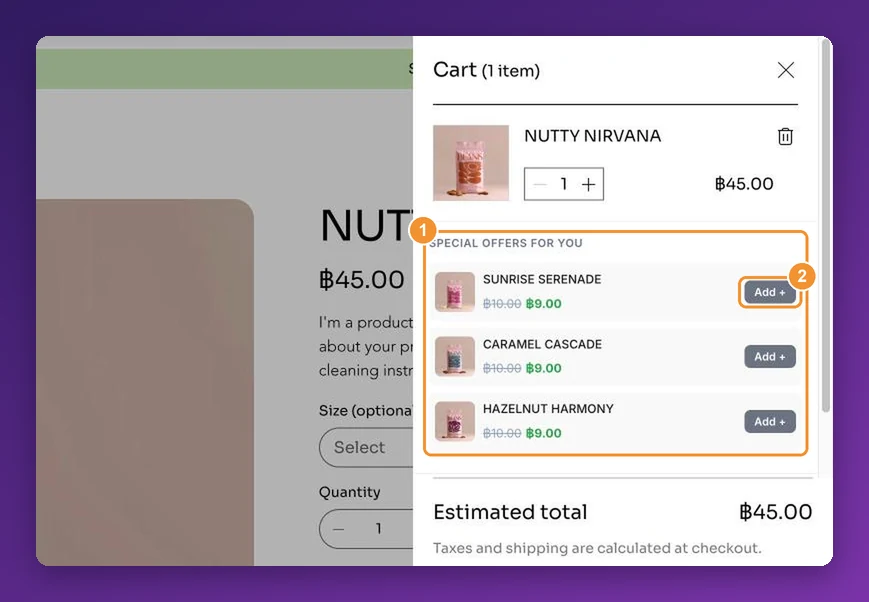
A short heading — Special offers for you when the offer has a discount, Customers also bought when it doesn't — or your own wording.
Each product with its image and price. With a discount, the original price is crossed out next to the new one.
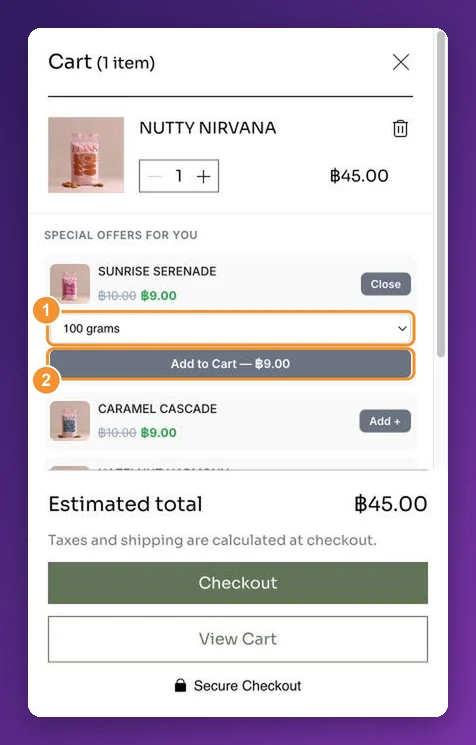
For products with options such as size, tapping the button opens a small picker so the shopper chooses before adding.
Before you start
Wix only. Cart and side cart offers work on Wix stores.
Two funnel types can use them: Product Upsell & Cross sell and Frequently bought together.
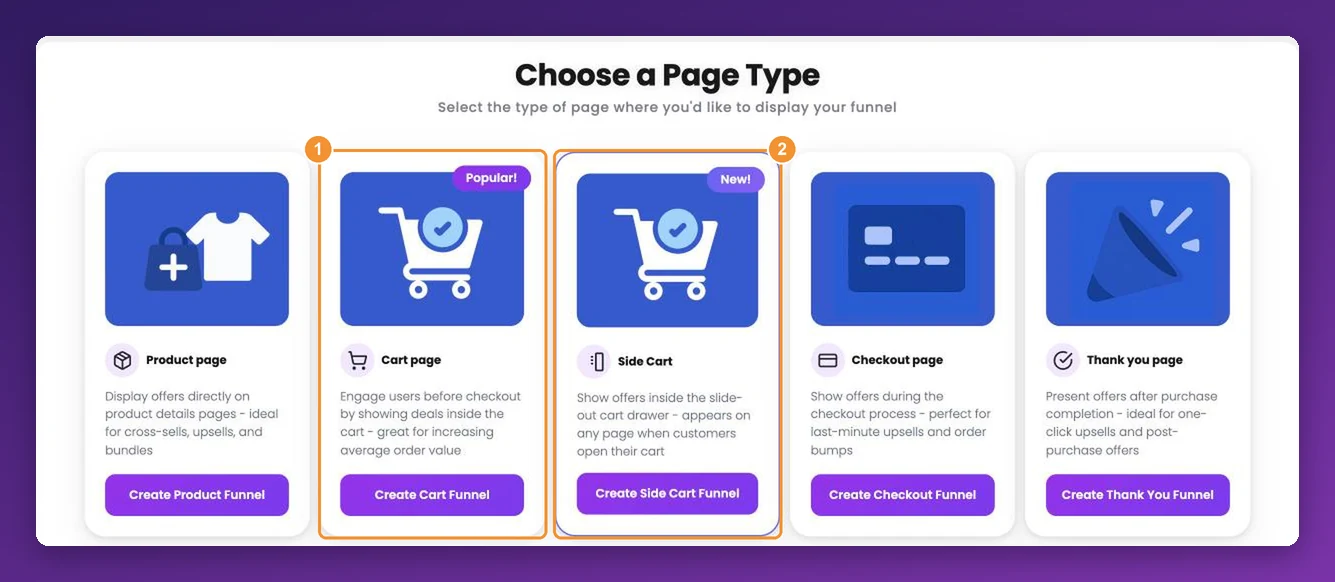
The cart page and the side cart are separate funnels. A Cart page funnel shows only on the full cart page — never in the side cart. A Side Cart funnel shows only in the side cart. To show an offer in both places, create one of each with the same products and triggers.
Side cart offers need Wix's side cart. They appear when your store's slide-out cart opens. On Wix Studio sites there's nothing else to set up. On sites built with the classic Wix Editor, the AppSell plugin must also be in your side cart — see step 5.
The cart page needs no setup in the Wix Editor. AppSell adds the offer when your live store loads, so you won't find it as an element in the Editor or the Layers panel, and it doesn't show in the Editor's preview. Check it on your published site.
Set it up step by step
1. Choose Cart page or Side Cart
Click Add New Funnel, choose Product Upsell & Cross sell, then Create Cart Funnel or Create Side Cart Funnel. Pick the place shoppers will see it: the offer won't move between the cart page and the side cart.
2. Set targeting and offer type
Choose who sees the offer and how often — see how to target a funnel. Cart offers are always Cross-Sell: they add products next to what's already in the cart. Under Select Triggers, you can limit the offer to carts with certain products, a cart value or a quantity.
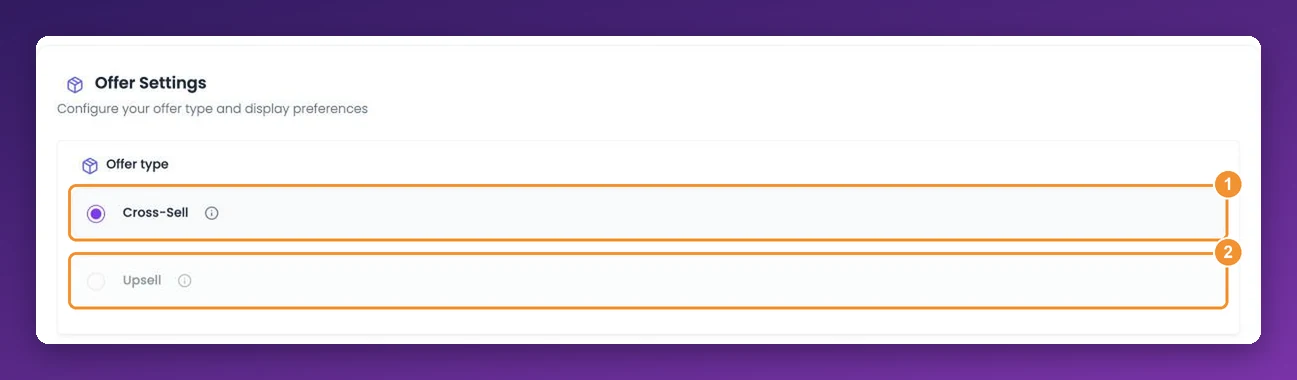
There's no popup-or-section choice here: cart offers always use their own compact layout.
3. Pick the products and an optional discount
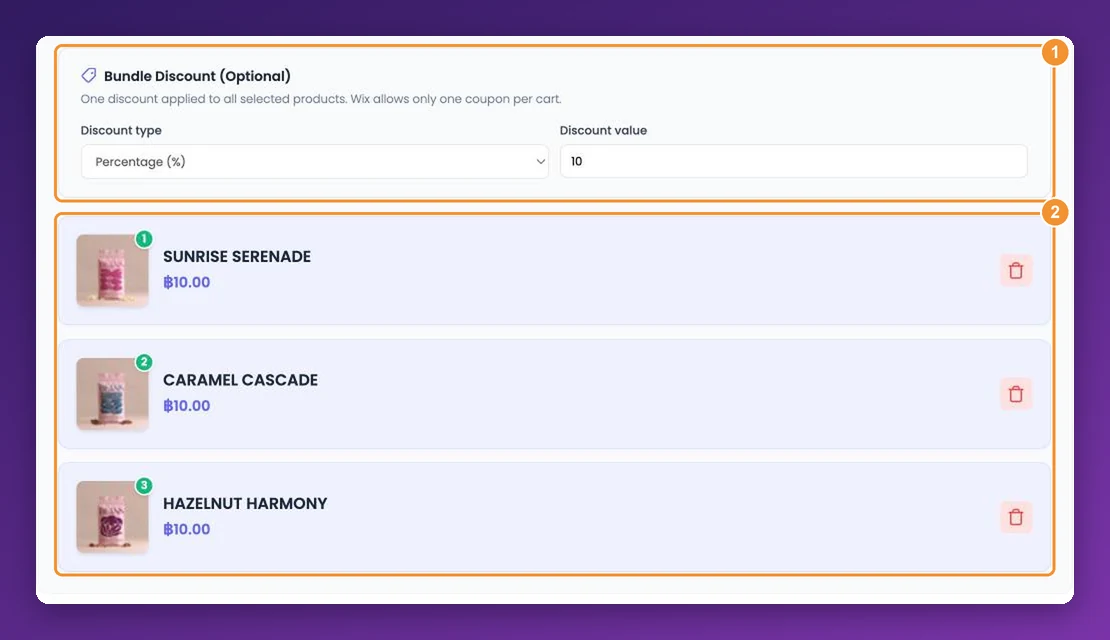
Search for products and click Select. Two to four products is the sweet spot — enough choice without crowding the cart.
Under Bundle Discount (Optional), choose Percentage (%) and enter a Discount value. The one discount applies to every product the shopper adds from the offer.
4. Adjust the wording and launch
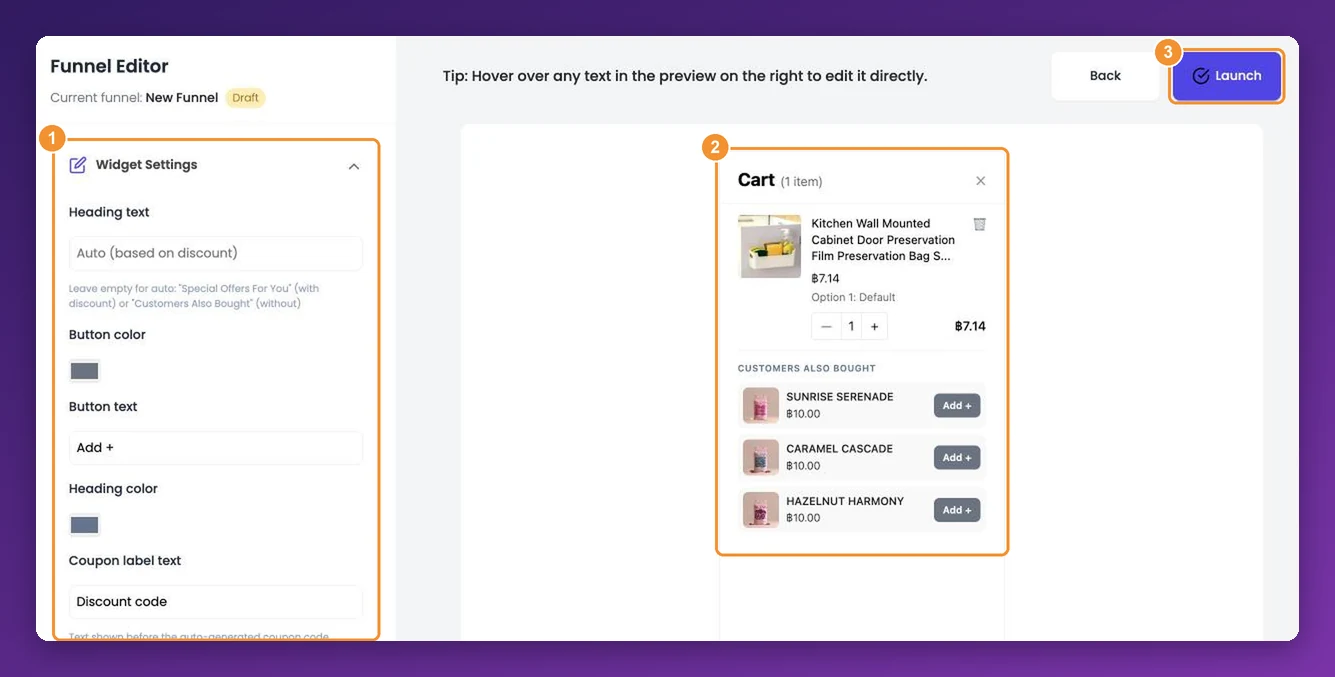
Under Widget Settings you can change the Heading text, Button text (Add + by default), the button and heading colours, and the Coupon label text. Below them, Widget text sets the small messages shoppers see while adding — Adding…, Added ✓, and the checkout bar. The preview shows the offer inside a cart. Click Launch when you're done.
5. Side cart on the classic Wix Editor: add the AppSell plugin
Skip this for a cart page funnel, or if your site is built with Wix Studio. On a classic Wix Editor site, a side cart offer only appears when the AppSell plugin is inside your side cart:
In the Wix Editor, open your side cart: click Pages & Menu, then Store Pages (or Cart & Thank You if you use more than one Wix business app), and select Side Cart. Wix explains this in customizing the side cart.
Add the AppSell plugin to the side cart.
Click Publish.
Can't find the plugin, or not sure it's there? Contact support with your store URL and we'll check it for you.
How the offer behaves
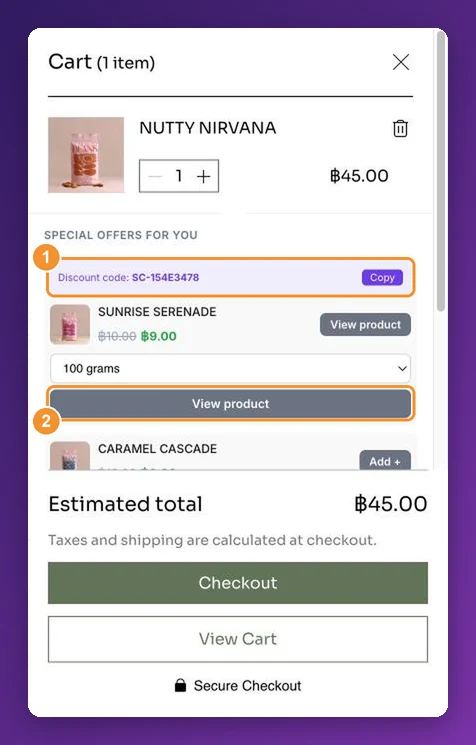
In the side cart, tapping Add + adds the product to the cart straight away. With a discount, AppSell creates a one-time discount code for that shopper, shows it with a Copy button, and enters it in the cart's promo-code box for them.
On the cart page, shoppers tap to select the products they want, and a bar appears: Add 2 items & checkout →. Clicking it — or your store's own Checkout button — takes them to checkout with the selected products and the discount included.
One cart offer at a time. If several cart funnels match, the one highest in your funnel list shows.
"Show until offer is accepted" works as show once for cart offers: after a shopper has seen the offer, it doesn't appear again in that browser.
Older cart page funnels may still use the earlier design, a popup or a section. Open the funnel and click Upgrade Design under New compact design available to switch to the compact list.
If the offer doesn’t show
Check these in order:
The funnel is on. Its Status toggle in My funnels is switched on.
You're looking in the right place. A Cart page funnel shows only on the full cart page, and a Side Cart funnel only in the slide-out side cart. If you want both, create one of each.
The cart matches the triggers. If the funnel has triggers, add a product that matches them (or reach the cart value or quantity they ask for), then open the cart. Check the funnel's device setting too.
Classic Wix Editor: the AppSell plugin is in your side cart. Without it, side cart offers can't appear — see step 5. Cart page offers don't need it.
You have visitor credits left. When your plan's monthly visitor credits are used up, offers pause everywhere — cart page, side cart and every other page — until the next period starts or you upgrade. Your usage is at the top of the dashboard sidebar, for example 7500/7500 credits used. See what happens at your limit.
You're checking the published site. AppSell doesn't appear in the Wix Editor, its preview or the Layers panel. Open your live store in a private (incognito) window, add a product, then open the cart page or the side cart — the side cart offer loads when the drawer opens.
No other cart funnel takes its place. Only one cart offer shows at a time, so a funnel of the same type higher in your funnel list wins.
If the offer shows but its buttons say View product instead of adding to the cart, activate the AppSell block and, if it continues, follow resolve add-to-cart issues on Wix.
For a step-by-step check on your store, see how to preview and test a funnel.
Frequently asked questions
Can one funnel show on both the cart page and the side cart?
No — each funnel shows in one place. Create a Cart page funnel and a Side Cart funnel with the same products to cover both.
Can I use a fixed-amount discount?
Use Percentage for cart and side cart offers. It's the option these offers are built around, and it keeps the saving fair across products with different prices.
What if the shopper already has a coupon?
Wix allows one coupon per order. When a shopper checks out through the offer, the offer's discount code is used.
Is this available on Shopify or WooCommerce?
Not at the moment — cart and side cart offers are a Wix feature.
Still stuck?
Tell support what you were doing and what happened instead — a store URL and a screenshot of the funnel settings usually resolves it in one reply.
Contact support