
How to set up a volume bundle discount (quantity breaks) on Wix
Offer "buy 2, save 10% · buy 3, save 15%" tiers on your Wix product pages. Wix applies the discount automatically at checkout — no coupon code.
A volume bundle discount — also called quantity breaks or tiered pricing — rewards a shopper for buying more of the same product. You set up to three tiers, such as buy 1 at full price, buy 2 and save 10%, buy 3 and save 15%. AppSell shows them as a block next to the product price; the shopper picks a tier, clicks Add to cart, and Wix takes the discount off automatically — no coupon code.
Before you start
Volume bundles are a Wix feature, they always show on product pages, and each funnel holds up to three tiers.
On Wix Studio sites and the newer Wix product page, the tiers sit inside the AppSell block, so activate the AppSell block on your product page first.
Set it up step by step
1. Start a volume bundle funnel
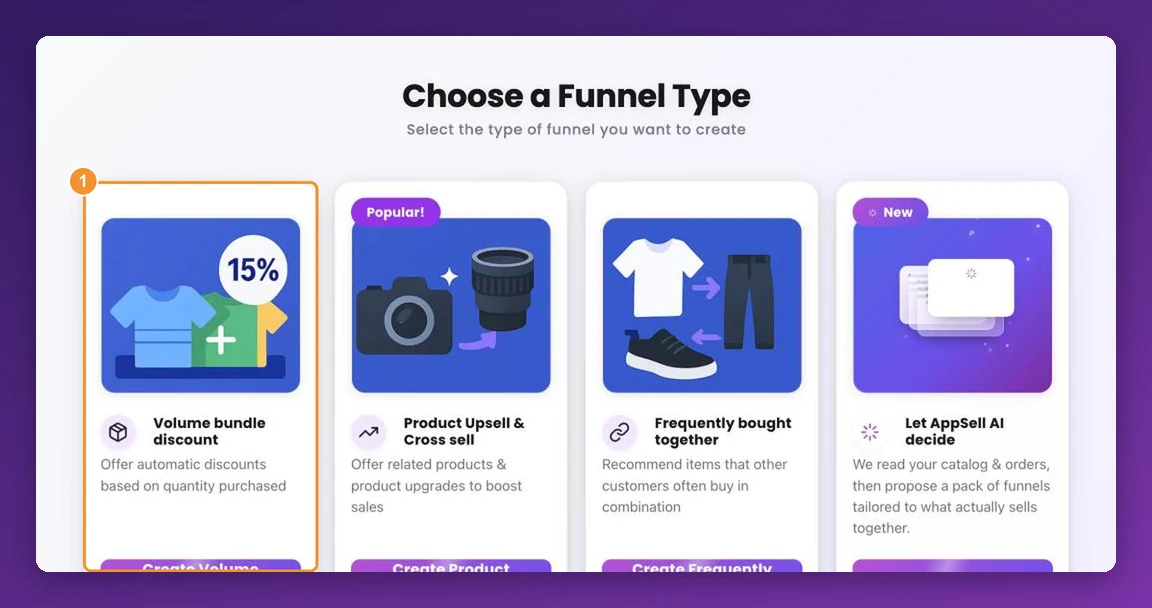
In your AppSell dashboard, click Add New Funnel. On the Choose a Funnel Type screen, find Volume bundle discount and click Create Volume Funnel.
2. Choose which products show the offer
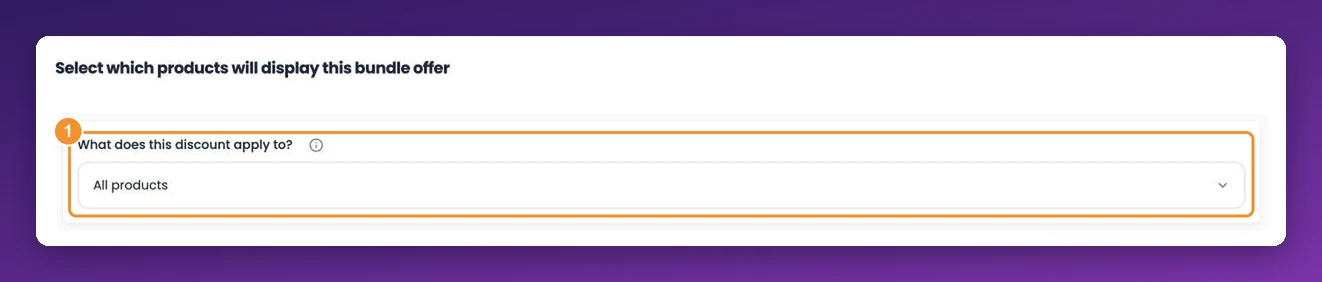
Under Select which products will display this bundle offer, open What does this discount apply to? and pick one of two options:
All products — every product page in your store shows the tiers, and each product gets its own discount.
Specific products — a product picker appears; search for and select the products that should carry the offer. You must pick at least one before you can continue.
3. Decide who sees it, and how often
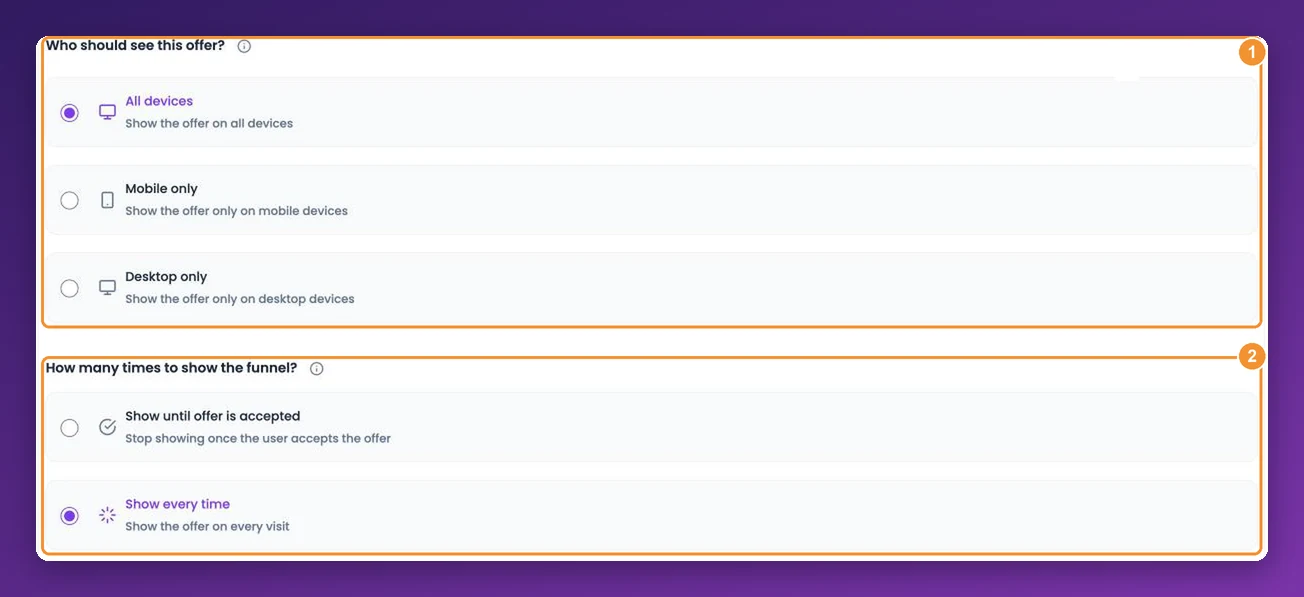
Further down the same step, choose the devices that see the offer and whether it shows every time or until the offer is accepted. Both settings are explained in how to target a funnel.
4. Pick a starting design
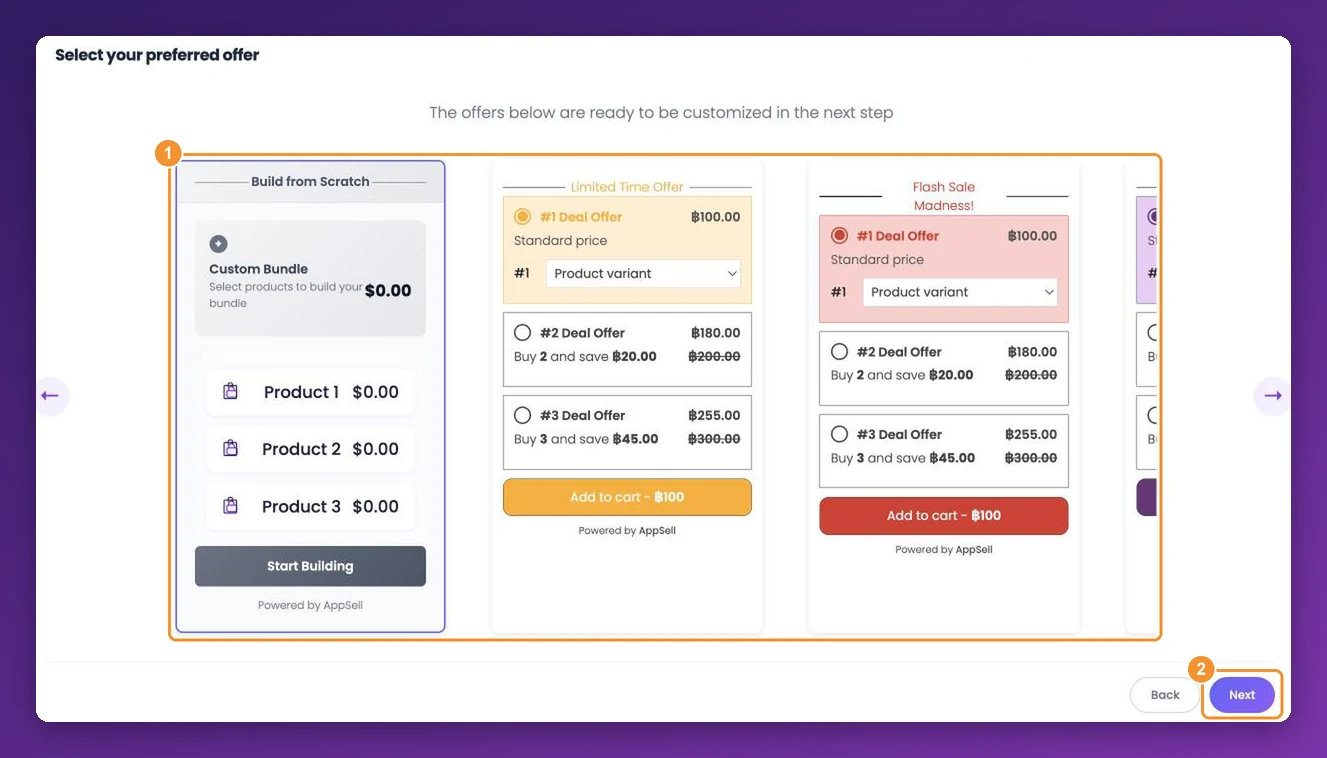
Under Select your preferred offer, choose a ready-made design or Build from Scratch. Use the arrows to see more designs. Everything in the design — text, colours, tiers — can be changed in the next steps, so pick the one closest to your store's look and click Next.
5. Set the label and the wording
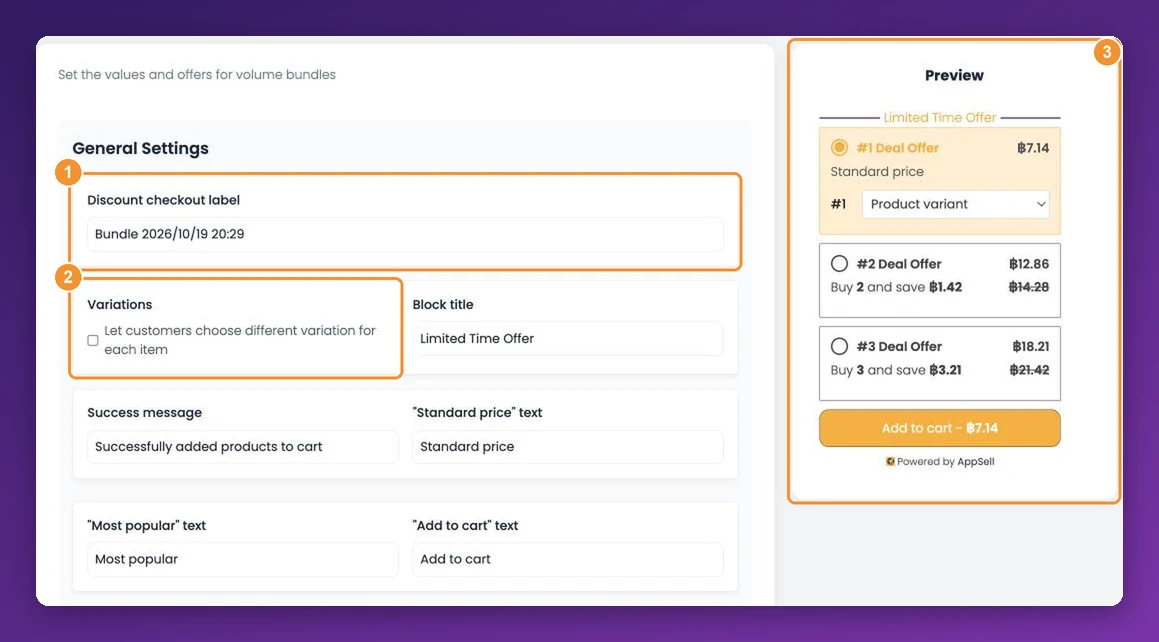
The General Settings panel controls the text your shoppers see. The Preview on the right updates as you type.
Discount checkout label — the name of the discount on the cart and checkout pages, for example Bundle & save. It must be unique in your store and up to 50 characters, and it cannot be changed after the funnel is saved, so choose it with care.
Variations — tick Let customers choose different variation for each item when your product has options such as size or colour. A shopper buying 3 then picks a variant for each of the three items, for example one small and two large.
The wording — Block title, Success message and the button and label texts. In "Buy and save" text, keep the
[qty]and[value]placeholders: Buy [qty] and save [value] becomes Buy 2 and save $20.00.
6. Set your tiers
Under Offer Settings, each row is one tier:
Title — the tier name, such as Single, Pair or Family pack.
Quantity — how many units the tier adds to the cart.
Discount — choose Percentage and enter the percent off each unit. Leave the first tier at 0 so it reads as your standard price.
Remove a tier with the bin icon, or click Add offer to bring one back when you have fewer than three. The second tier is the one marked with your "Most popular" text in designs that show a badge, so make it the deal you most want to sell.
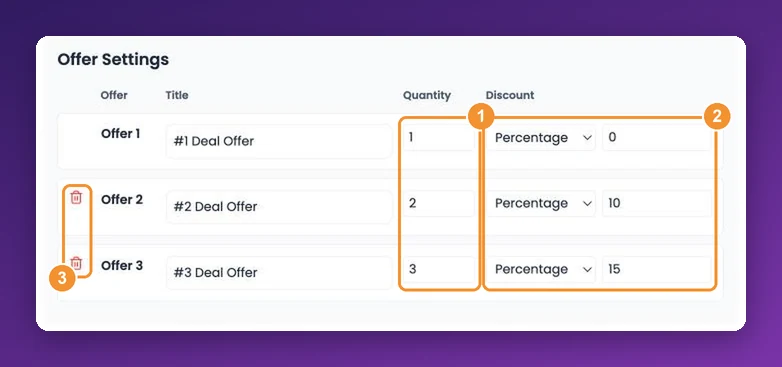
Use Percentage for every tier. It is the discount type we recommend for volume bundles, because the saving stays proportional when you change a product's price.
7. Style it and launch
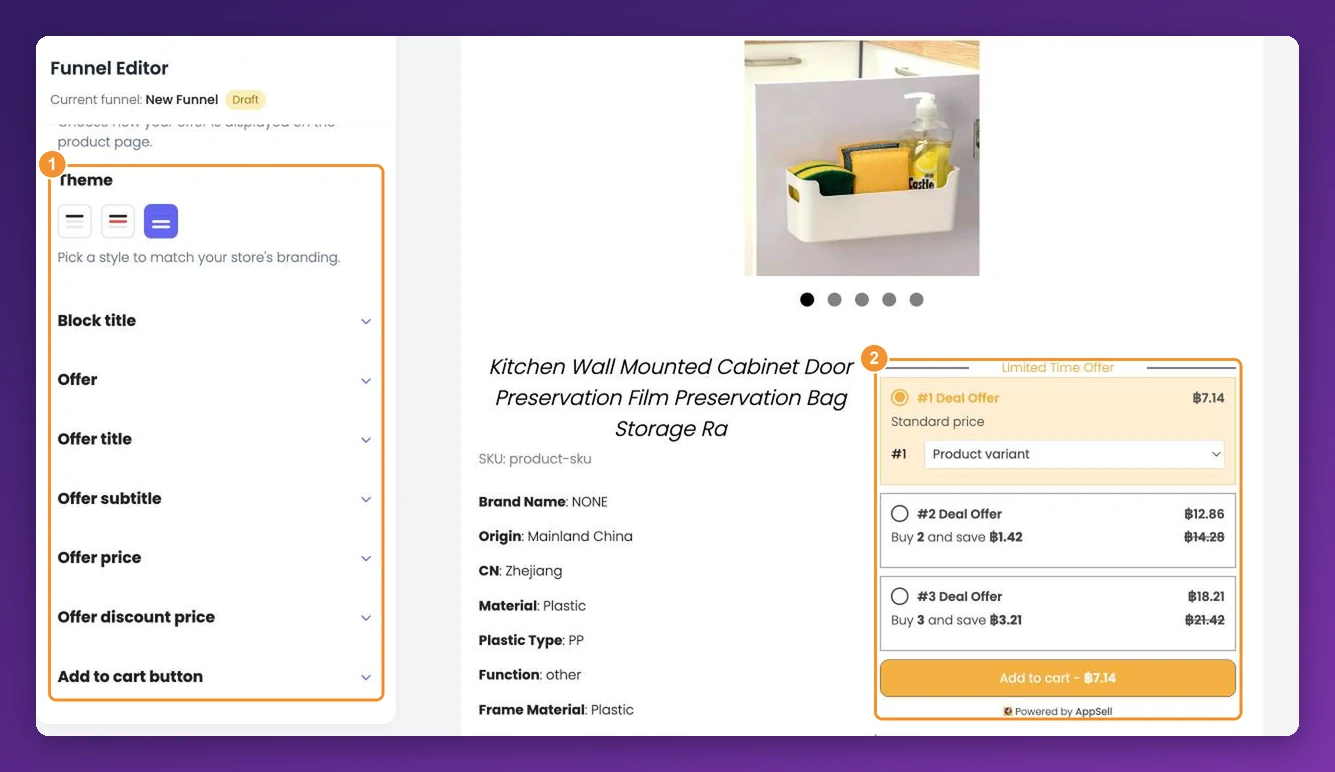
In the Funnel Editor, open Layout & Theme to choose a Vertical or Horizontal layout and one of three themes. The sections below it set fonts, colours, borders and corner radius for each part of the block, and the preview shows it where it will sit on your product page.
When it looks right, click Launch. The funnel goes live on your store straight away.
How the discount is applied at checkout
A volume bundle is not a coupon. When a shopper first adds one of your products to the cart through the offer, AppSell creates a Wix automatic discount for that product — one rule per discounted tier, named after your checkout label. From then on:
The discount applies whenever the quantity of that product in the cart falls inside a tier, even if the shopper used your store's normal Add to Cart button instead of the offer.
The tier prices in the block are worked out from the product's base price. If your variants are priced differently, the cart and checkout always show the correct final price.
You will see these rules among the automatic discounts in your Wix dashboard. Leave them in place — AppSell manages them, and recreates any that are deleted there.
Pausing or removing the offer
To hide the block, switch the funnel's Status toggle off in My funnels. The tiers disappear from your product pages, but the Wix automatic discount stays active, so a shopper who adds the qualifying quantity still gets the discount.
To stop the discount completely, delete the funnel. Deleting removes the Wix automatic discounts that AppSell created for it — do this before you uninstall AppSell, too.
If the offer does not appear
Check that the funnel's Status toggle is on, that the AppSell block is active on your product page, and, with Specific products, that you're on one of the chosen products. A product page shows one volume bundle at a time — if two funnels cover the same product, the one higher in your funnel list wins. For everything else, see how to preview and test a funnel.
If the tiers show but the discount doesn't apply, list your tiers from the smallest quantity to the largest, and check that your Wix automatic discounts list isn't full — Wix limits how many a site can have. More fixes are in discount not applied at checkout.
Frequently asked questions
Can I offer volume bundles on Shopify or WooCommerce?
Not at the moment. Volume bundles are a Wix feature. On Shopify and WooCommerce, a frequently bought together bundle is the closest alternative.
Can different products have different tiers?
Yes. Create one funnel per group of products, each set to Specific products with its own tiers.
Can I change the checkout label later?
No — the label is locked once the funnel is saved. To use a new label, create a new funnel and delete the old one.
Still stuck?
Tell support what you were doing and what happened instead — a store URL and a screenshot of the funnel settings usually resolves it in one reply.
Contact support