
How to preview and test a funnel before customers see it
Check a funnel in the dashboard preview, then see it on your live store — with a safe way to test without showing it to everyone.
There are two ways to check a funnel: a quick preview in your dashboard, and a real look on your live store. Use the preview to check the design and wording, and the live store to check that the funnel appears where and when you expect.
Preview it in the dashboard
In My funnels, click ⋮ on the funnel and choose Preview. A Funnel preview window shows the offer above one of your own pages of the right type.
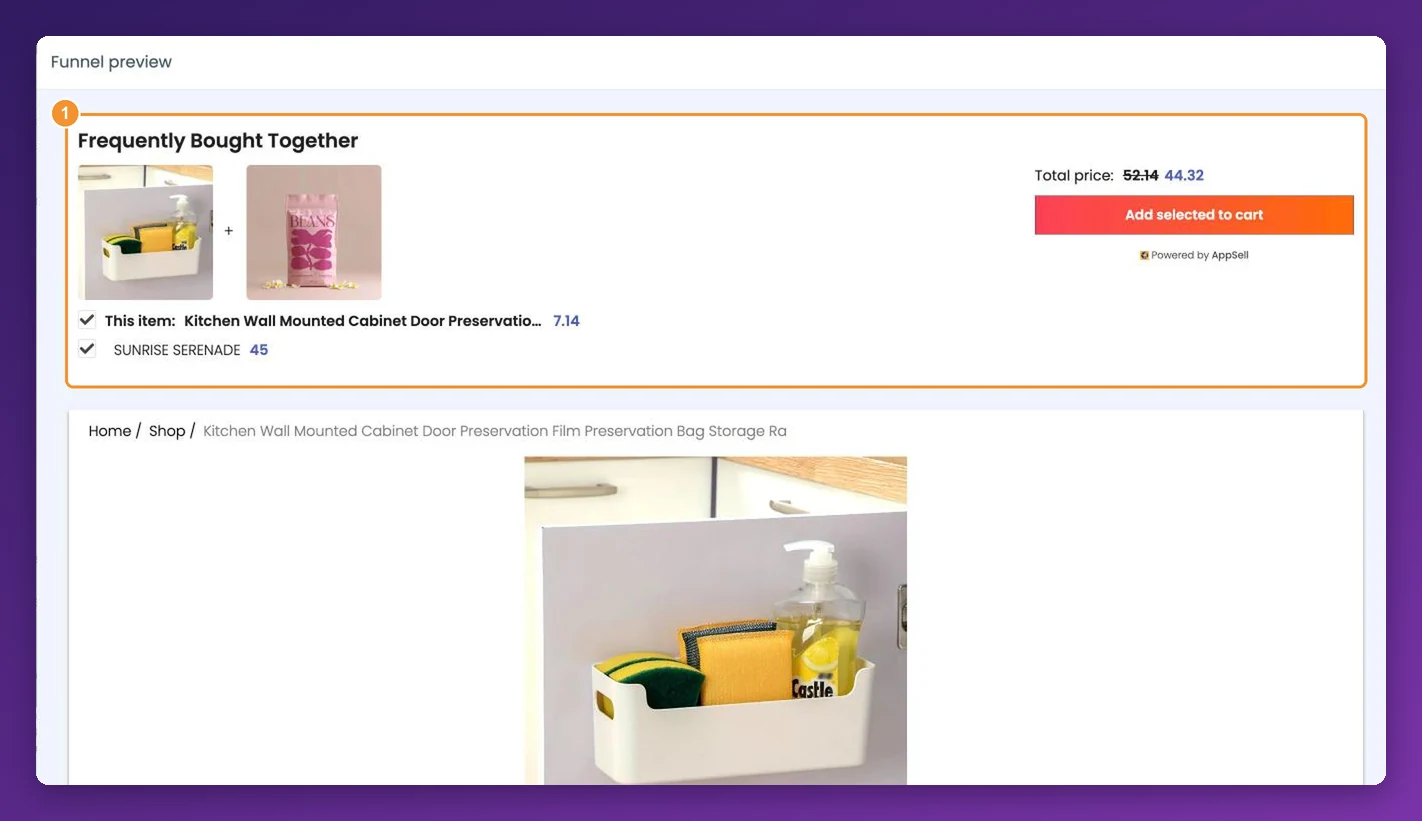
The preview shows the design only. It doesn't apply triggers, device rules or how-often settings, and it can't place an order — that's what the live check is for.
See it on your live store
When you click Launch on a new funnel, AppSell asks Would you like to preview the funnel on your store? Click Yes to open your store on a page where the funnel appears.
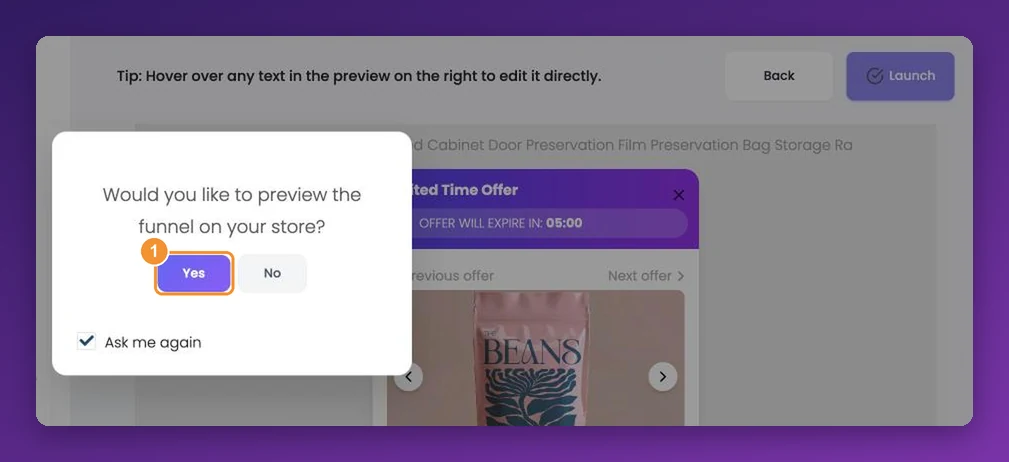
For an existing funnel, click ⋮ and choose Visit triggered page. AppSell opens your store in a new tab on a page where the funnel should appear — on Wix, a product page the funnel targets.
From there, act like a shopper to reach the funnel's page:
Product page funnels appear on the page that opens.
Cart and side cart funnels — add a product to the cart (one that matches the funnel's triggers, if it has any), then open the cart.
Checkout funnels — continue to checkout.
Thank-you page funnels — place a test order. On Wix, see how to view the thank-you page funnel.
Use a private (incognito) window. It starts with a clean slate, so a Show until offer is accepted funnel you've already accepted shows again.
Test without showing it to everyone
AppSell has no separate test mode — a switched-on funnel is live for every shopper it targets. To try something new safely:
Target it narrowly while you test — for a product page funnel, Selected product pages with one product; for a cart funnel, a product trigger on a single product.
Check it on the live store, on both desktop and mobile.
Widen the targeting when you're happy with it.
Remember that a new funnel goes to the top of the list for its page, so it can take over from an older funnel of the same type straight away — see which funnel shows when several match.
If it does not show
The funnel's Status toggle is on.
You're on the right device for its Who should see this offer? setting.
The cart or order meets its triggers.
No funnel of the same type sits higher in the list for that page.
Your plan still has monthly visitor credits — offers pause when the limit is reached.
Still stuck? Work through the troubleshooting guide.
Still stuck?
Tell support what you were doing and what happened instead — a store URL and a screenshot of the funnel settings usually resolves it in one reply.
Contact support