
How to set up a frequently bought together bundle
Show an Amazon-style "Frequently bought together" bundle with one-click "Add selected to cart" and an optional bundle discount.
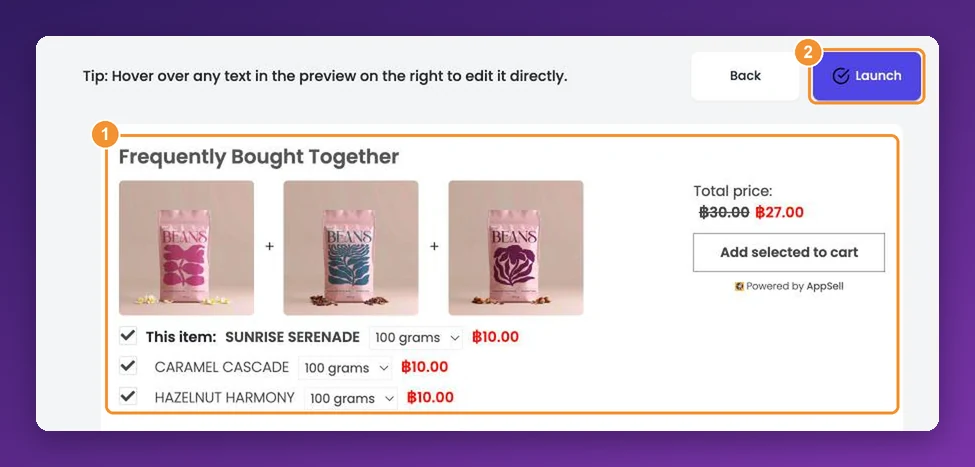
A frequently bought together bundle shows a product alongside up to two items that go with it, with a combined price and a single Add selected to cart button — the familiar format from large marketplaces. It works on every platform AppSell supports.
What shoppers see
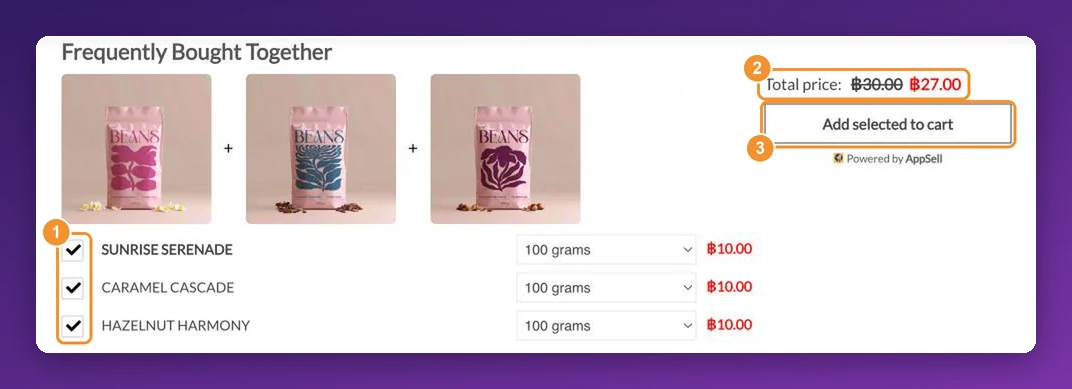
Every item starts ticked. The total updates as shoppers untick items or change options, and Add selected to cart adds the chosen items in one go — with the bundle discount applied automatically if you set one.
Set it up step by step
1. Choose the page and the bundle type
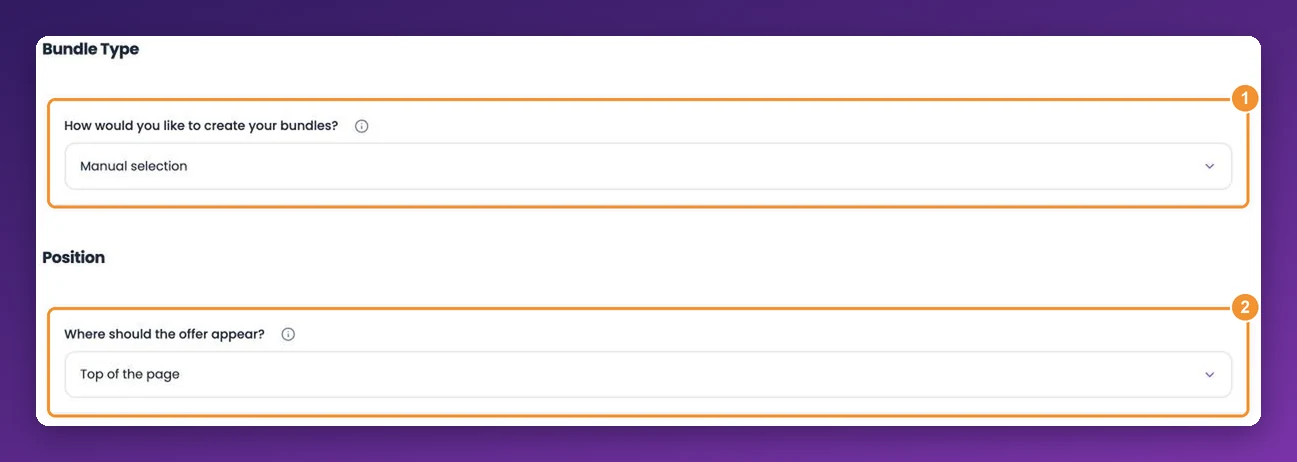
Click Add New Funnel, choose Frequently bought together, then the page: Product page, Cart page or Side Cart. The same step has the usual targeting options, then:
How would you like to create your bundles? — Manual selection to pick the products yourself, or AI-powered recommendations on Wix (see below).
Where should the offer appear? — Top of the page or Bottom of the page. The bundle always shows as part of the page, never as a popup.
2. Pick the main product
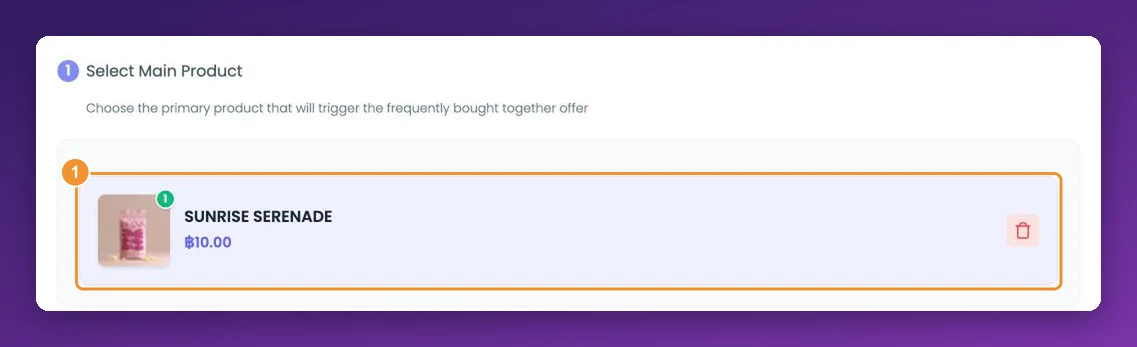
Under Select Main Product, search for the product the bundle is built around and click Select Main. On a product page funnel, the bundle shows on this product's page.
3. Add the bundle products
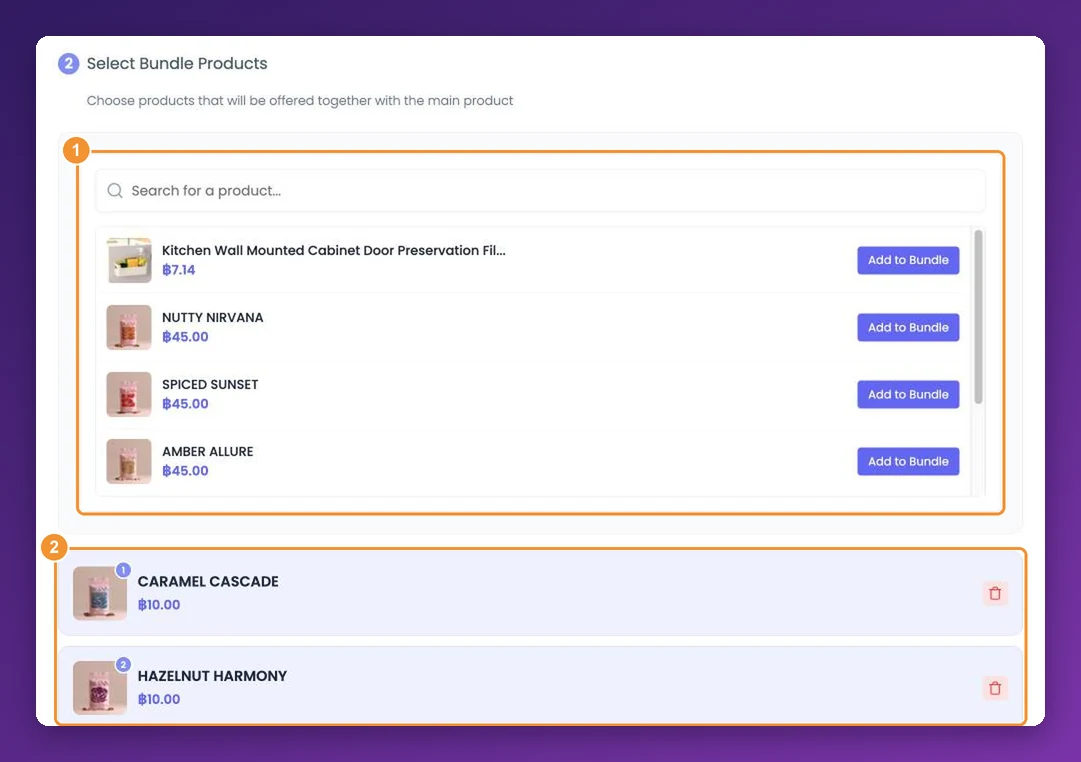
Under Select Bundle Products, click Add to Bundle next to up to two products. Choose items that genuinely complete the main product — a case for a phone, a refill for a starter kit.
4. Add a bundle discount (optional)
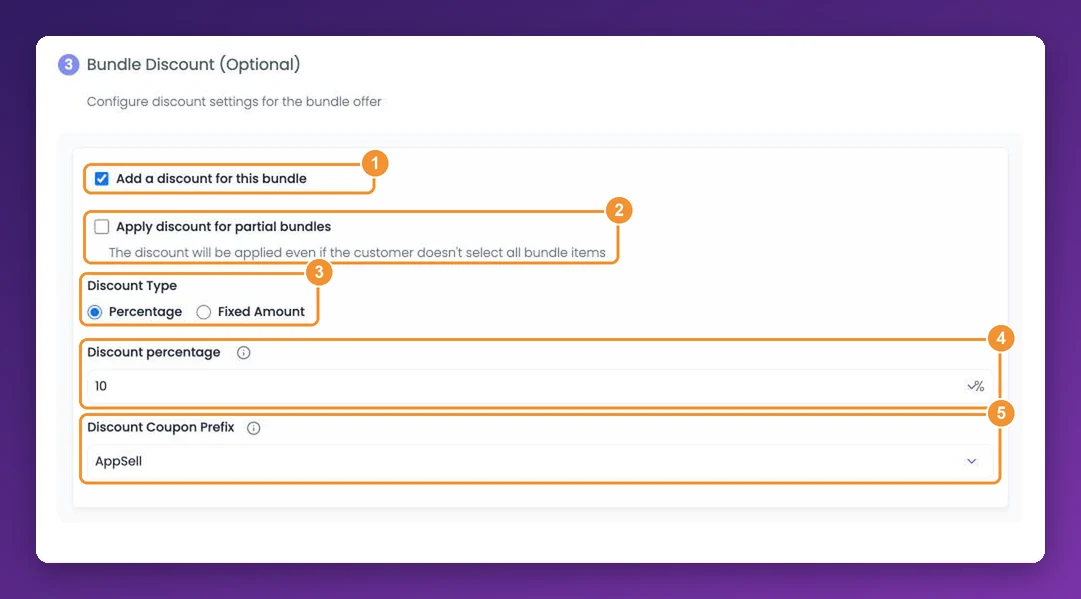
Under Bundle Discount (Optional):
Add a discount for this bundle — switches the discount on.
Apply discount for partial bundles — gives the discount even if the shopper unticks some items. Leave it off to reward only the full bundle.
Discount Type — Percentage off the bundle, or a Fixed Amount. Use Percentage on Shopify stores and for bundles shown in the cart or side cart.
Discount Coupon Prefix — the start of the discount code AppSell creates for you.
5. Style it and launch
In the Funnel Editor, set the colours of the title, product names, prices and button under Design Settings. Hover over any text in the preview — Frequently Bought Together, Add selected to cart — to change the wording. Then click Launch.
Let Wix pick the products (Wix only)
On Wix stores, choose AI-powered recommendations instead of manual selection. Bundles are then built automatically for every product using Wix's own recommendation engine. Choose how products are matched:
From the same categories — items that share the most categories.
Frequently bought together — items often bought with the product.
Frequently viewed together — items often viewed with the product.
Best sellers — your top sellers (cart page only).
Automatic bundles suit large catalogs. For a bundle discount, build the bundle by hand.
Frequently asked questions
Can a bundle have more than three products?
No — the main product plus up to two others. Three is also the size shoppers take in at a glance.
Do shoppers need to enter a code for the bundle discount?
No. AppSell creates the code and applies it to the cart for them.
Can I show different bundles for different products?
Yes — create one funnel per main product. Each bundle shows on its own product's page.
Still stuck?
Tell support what you were doing and what happened instead — a store URL and a screenshot of the funnel settings usually resolves it in one reply.
Contact support