
How to add a countdown timer to an upsell offer
Add a "Offer will expire in" countdown to a product upsell, set its length and expired message, and know how it behaves for shoppers.
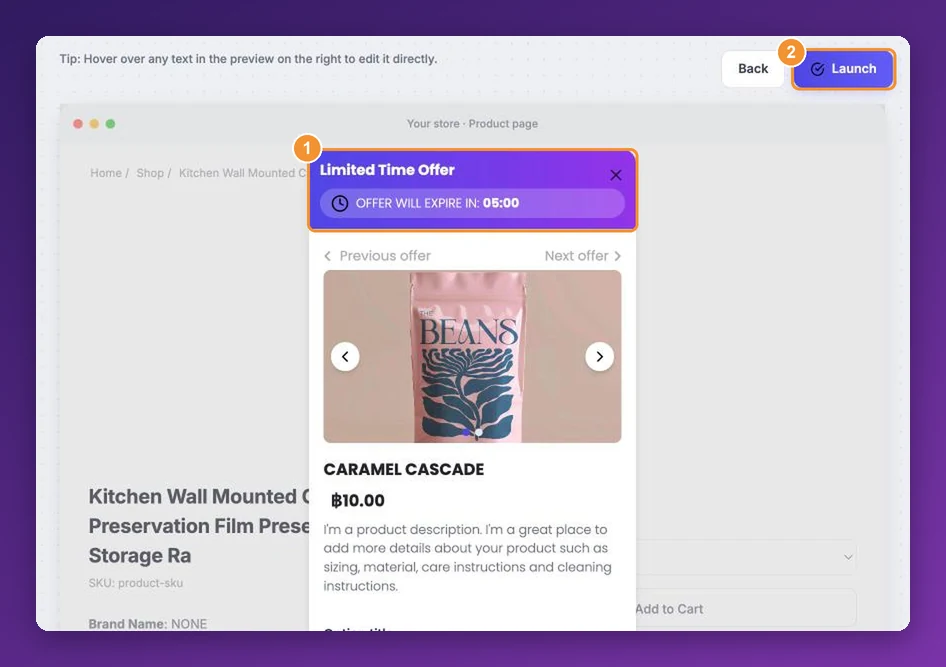
A countdown timer adds a little urgency to an offer: a bar across the top reading Offer will expire in 05:00 that ticks down while the shopper decides. It's switched on by default on new product upsell offers, and takes a minute to adjust.
Where you can use it
The timer is part of the Product Upsell & Cross sell offer, shown as a popup or a section. It isn't available on frequently bought together or volume bundle offers.
Set up the timer
Create a product upsell funnel, or open an existing one with Edit, and go to the last step — the Funnel Editor.
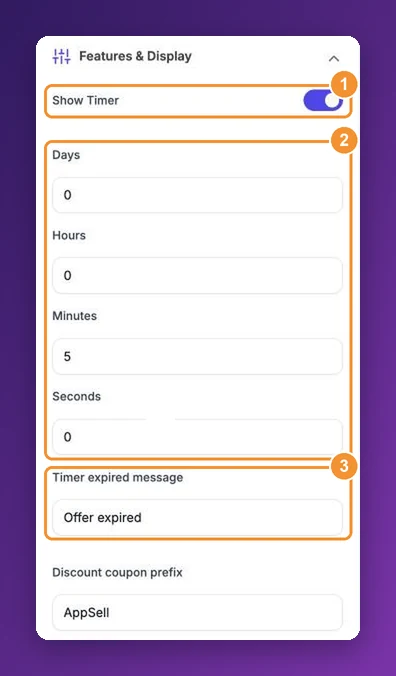
Open Features & Display in the left panel.
Leave Show Timer on — or switch it off to hide the timer.
Set how long the countdown runs with Days, Hours, Minutes and Seconds. The default is 5 minutes.
In Timer expired message, write what shows when the countdown reaches zero — Offer expired by default.
To change the words above the countdown, hover over Offer will expire in in the preview and type your own. The timer's colours are under Design Settings: Timer background color and Timer text color.
How the countdown works for shoppers
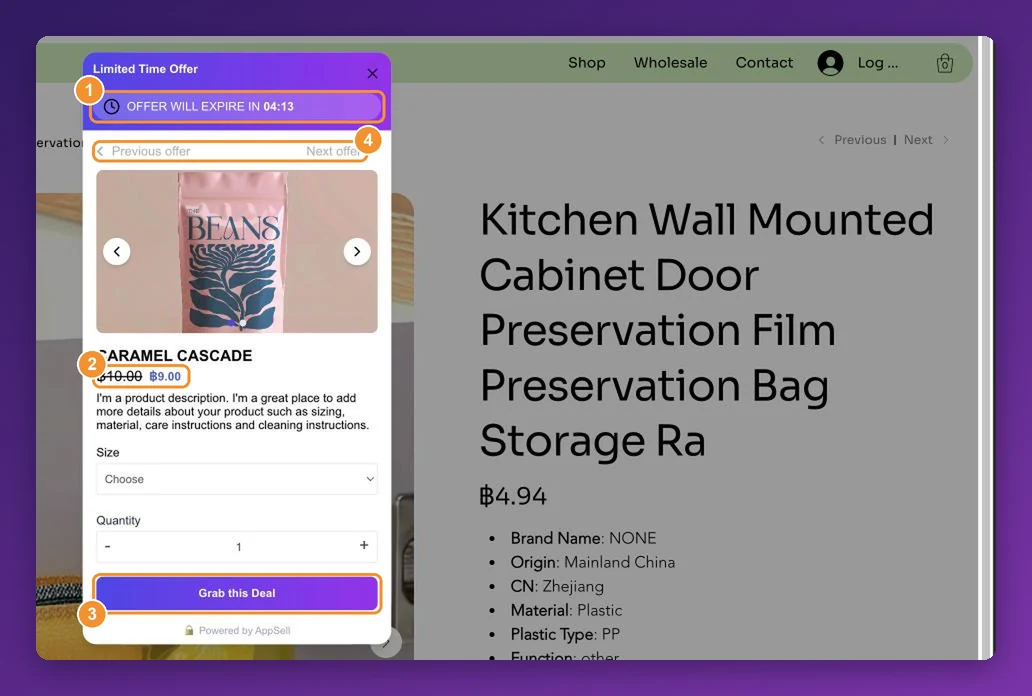
It's a countdown per page view. It starts when the page with the offer loads and begins again if the shopper reloads or comes back. It's a nudge to decide now, not a store-wide deadline.
At zero, the countdown is replaced by your expired message. The offer itself stays available, so a shopper who decides a little late can still accept it.
Tips
Keep it short. 5 to 15 minutes matches the time a shopper spends on a page. A countdown measured in days feels like decoration.
Keep the wording honest. Because the timer restarts on a new visit, phrase it as Offer reserved for you for or Special price for the next rather than promising the deal ends for good.
Pair it with a real discount — urgency works best when there's something to lose. See how discounts work on AppSell offers.
Frequently asked questions
Can I set the offer to end on a fixed date?
Not with the timer. To run an offer for a set period, switch the funnel on and off with its Status toggle — see how to manage your funnels.
The timer was already part-way down when my popup opened.
The countdown starts when the page loads. With the Add to cart button or Notification triggers the popup opens later, so the timer has already been running. Use a longer duration with those triggers.
Still stuck?
Tell support what you were doing and what happened instead — a store URL and a screenshot of the funnel settings usually resolves it in one reply.
Contact support