
How to use the AI funnel generator
Let AppSell read your Wix catalog and orders and propose a ready-made pack of upsell, bundle and frequently bought together funnels.
The AI funnel generator builds funnels for you. It looks at your products and recent orders, picks pairings that make sense, and proposes a small pack of ready-made funnels. You review each one and publish the ones you like in a single click.
What it does
Reads your catalog — up to 300 products: names, prices and variants.
Reads your AppSell orders from the last 60 days to see which products are bought together. A new store with no orders yet still works — pairings then come from the catalog alone.
Proposes three kinds of funnel: frequently bought together pairs, upsells to a better product, and volume bundles such as a 3-pack.
Explains each pick, so you can see why a pairing was suggested before you publish it.
Before you start
Wix only. The generator is available to Wix stores.
At least two visible products in your store.
Plans: anyone can generate proposals. Publishing is unlimited on paid plans; on the free trial you can publish once.
Generate your funnels
1. Open the generator
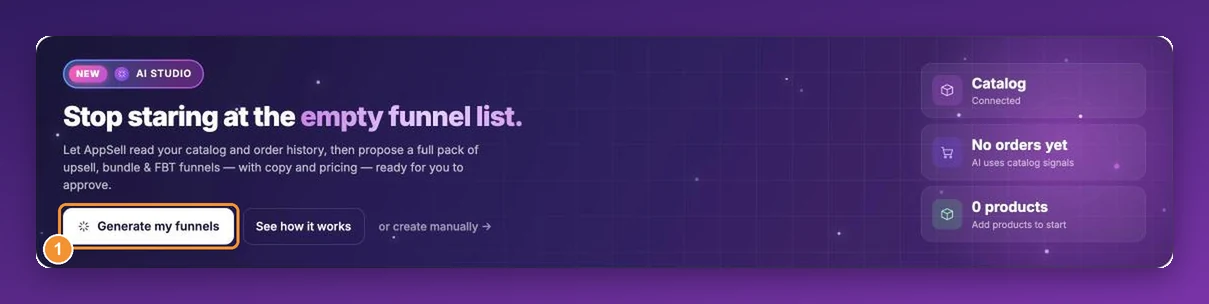
On your AppSell dashboard, click Generate my funnels. You can also start from Add New Funnel and choose Let AppSell AI decide.
2. Tell it what to optimise for
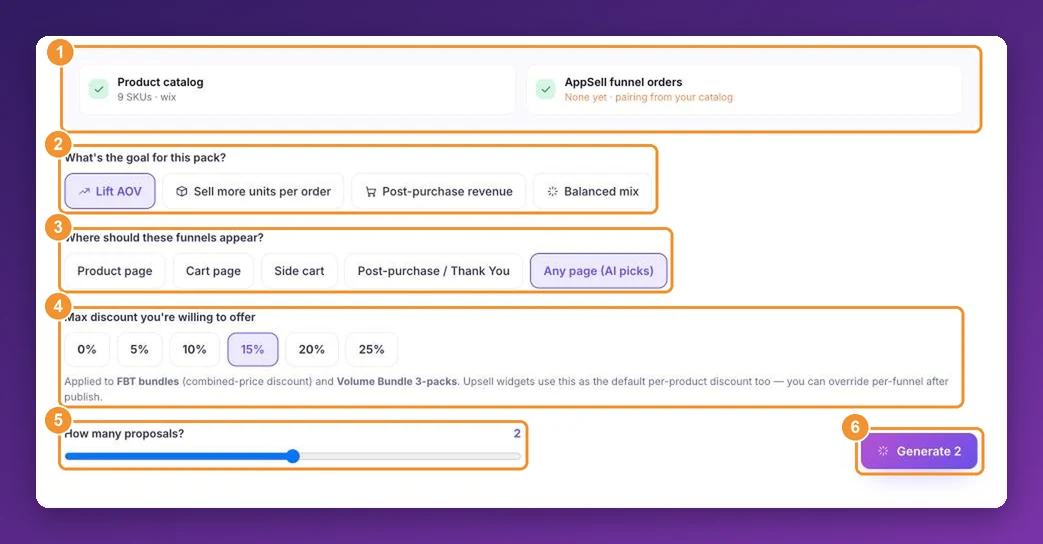
The top of the page shows what the generator can read: the number of products in your catalog, and your AppSell orders. With no orders yet it says pairing from your catalog.
What's the goal for this pack? — Lift AOV favours pairings and upgrades; Sell more units per order favours bundles; Post-purchase revenue favours upsells; Balanced mix blends all three.
Where should these funnels appear? — a specific page, or Any page (AI picks). Bundles always go on product pages; if your goal and page don't fit together, the generator warns you before it runs.
Max discount you're willing to offer — the most you're comfortable giving away.
How many proposals? — one to three.
Click Generate. It usually takes under a minute.
3. Review and publish
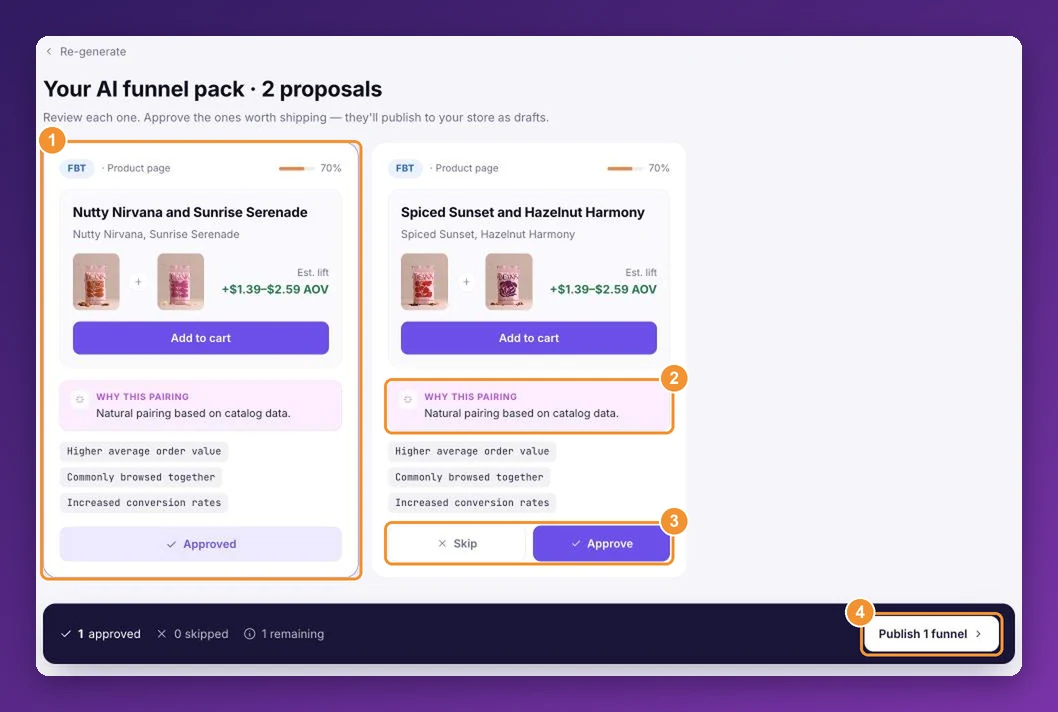
Each proposal appears as a card with the products, the offer, and Why this pairing. Click Approve on the ones you want and Skip on the rest — or Re-generate for a fresh set. Then click Publish.
After you publish
Published funnels go live on your store straight away. They appear in My funnels with names starting AI:. Before you move on:
Open each one with Customize and check the products, the discount and the wording. Edit anything you'd like to change.
Switch off any you aren't ready to show, using its Status toggle.
Check where each sits in your list — new funnels go to the top, ahead of your existing funnels of the same type. See which funnel shows when several match.
Frequently asked questions
Is it available on Shopify or WooCommerce?
Not yet — it's a Wix feature. On other platforms, build funnels in the wizard: create your first funnel.
It says it couldn't find pairings.
Choose Product page or Any page (AI picks) — they give it the most room — or add more products to your store.
Can I edit an AI funnel?
Yes. AI funnels are ordinary funnels once published: edit, rename, pause or delete them like any other.
Still stuck?
Tell support what you were doing and what happened instead — a store URL and a screenshot of the funnel settings usually resolves it in one reply.
Contact support