
How to manage your funnels: pause, edit, rename, duplicate and delete
Everything you can do from the My funnels list — find a funnel, switch it on or off, edit, rename, copy and remove it.
All your funnels live in My funnels on the AppSell dashboard. From here you can find any funnel, switch it on or off, edit it, and rename, copy or remove it.
The My funnels list
Each row shows the funnel's name and offer type, its Status, its Type (Default shows to everyone; Trigger uses custom triggers), the Target page, and its results: Impressions, CTR, Orders and Revenue. What these numbers mean is explained in understanding your funnel performance.
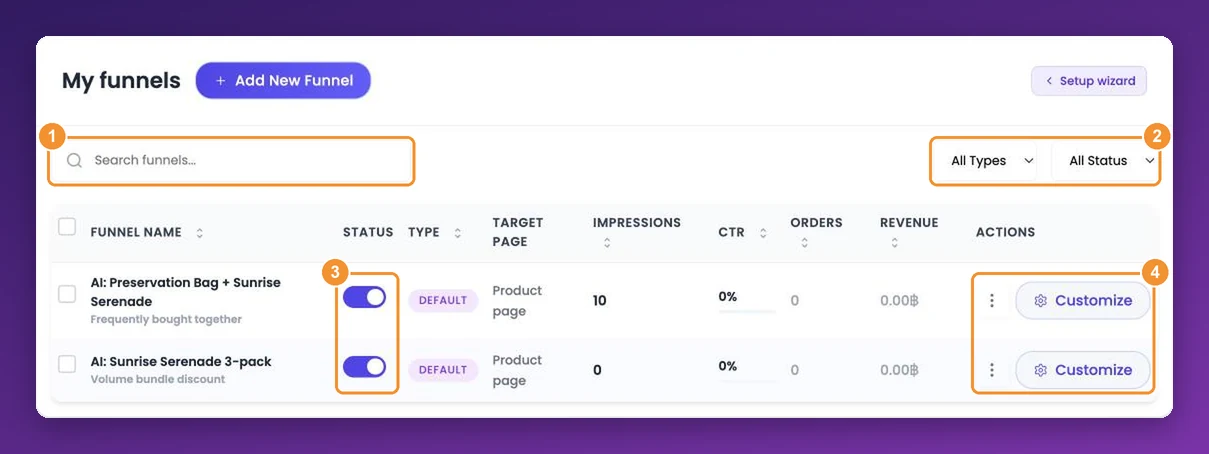
To find a funnel, type part of its name into Search funnels…, or narrow the list with All Types (Trigger or Default) and All Status (Active or Inactive). The order of the list matters — see which funnel shows when several match.
Switch a funnel on or off
The Status toggle is the on/off switch for a funnel. Switch it off and the offer disappears from your store; switch it back on and it returns, with all its settings and results intact. Use it to pause seasonal offers instead of deleting them.
New funnels are switched on as soon as you launch them.
Edit a funnel
Click Customize to reopen the funnel in the editor. Change what you need — products, targeting, design, text — and save. Changes reach your store within a minute or so.
Rename, duplicate, preview and delete
Click the ⋮ button on a row to open its menu:
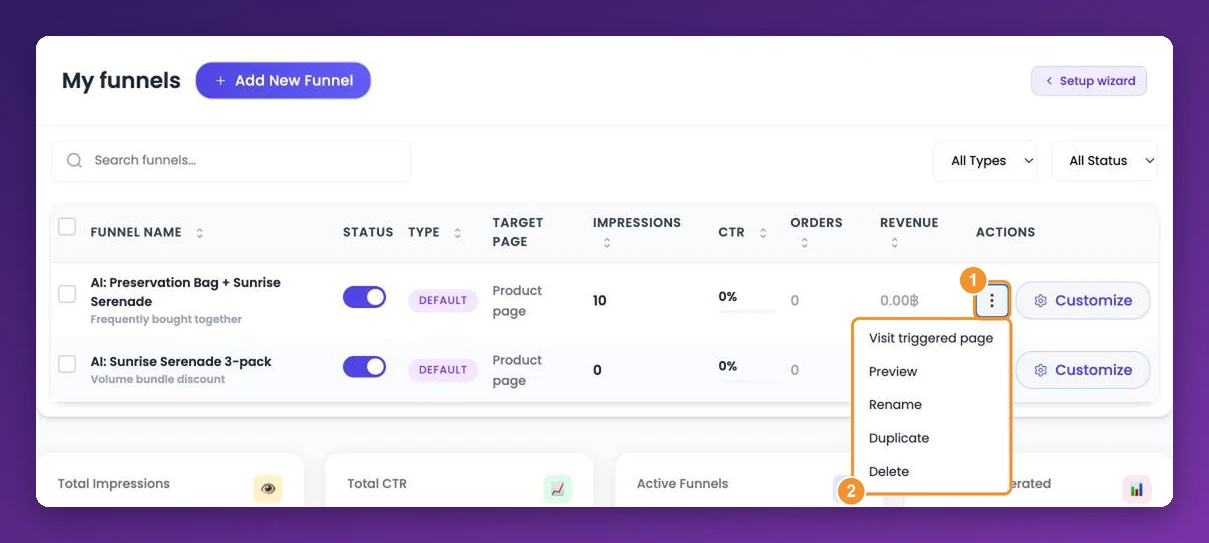
Visit triggered page and Preview — check what the funnel looks like. See how to preview and test a funnel.
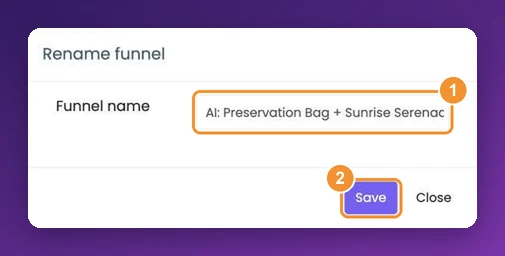
Rename — enter a new Funnel name and click Save. Names are only visible to you, so make them descriptive, such as Cart · lens offer for cameras.
Duplicate — makes a copy named with -copy at the end. The copy keeps the original's on/off status, so a copy of a live funnel is live straight away, and it goes to the top of the list. Rename it and adjust it, or switch it off until it's ready.
Delete — asks you to confirm, then removes the funnel. Deleting can't be undone; if you might want the funnel again, switch it off instead.
Delete several funnels at once
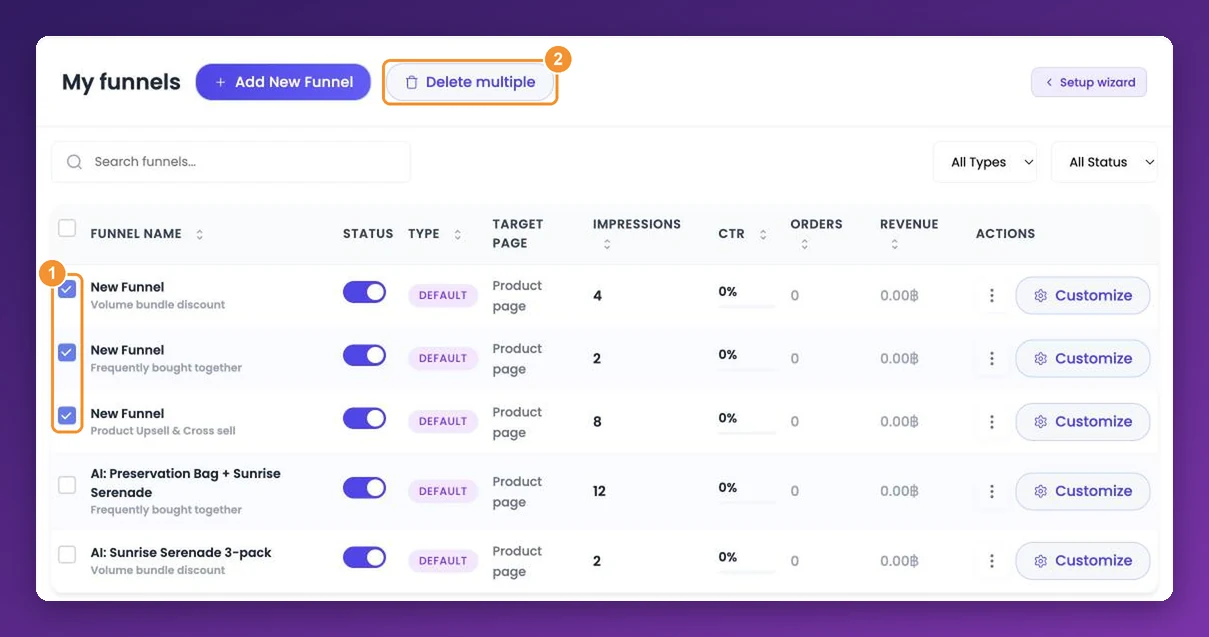
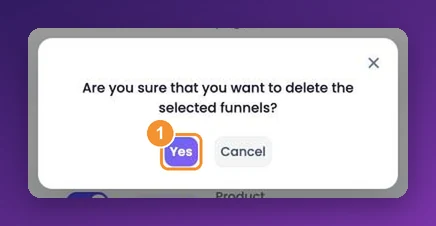
Tick the checkbox at the start of each row you want to remove — or the checkbox in the header to select them all. A Delete multiple button appears next to Add New Funnel; click it and confirm with Yes.
Still stuck?
Tell support what you were doing and what happened instead — a store URL and a screenshot of the funnel settings usually resolves it in one reply.
Contact support