
Your AppSell dashboard explained
A tour of the AppSell dashboard: the sidebar, the AI Studio, My funnels, your results, recent activity, your plan usage and settings.
The AppSell dashboard is where you create offers, switch them on and off, and see how they perform. Here's what each part does.
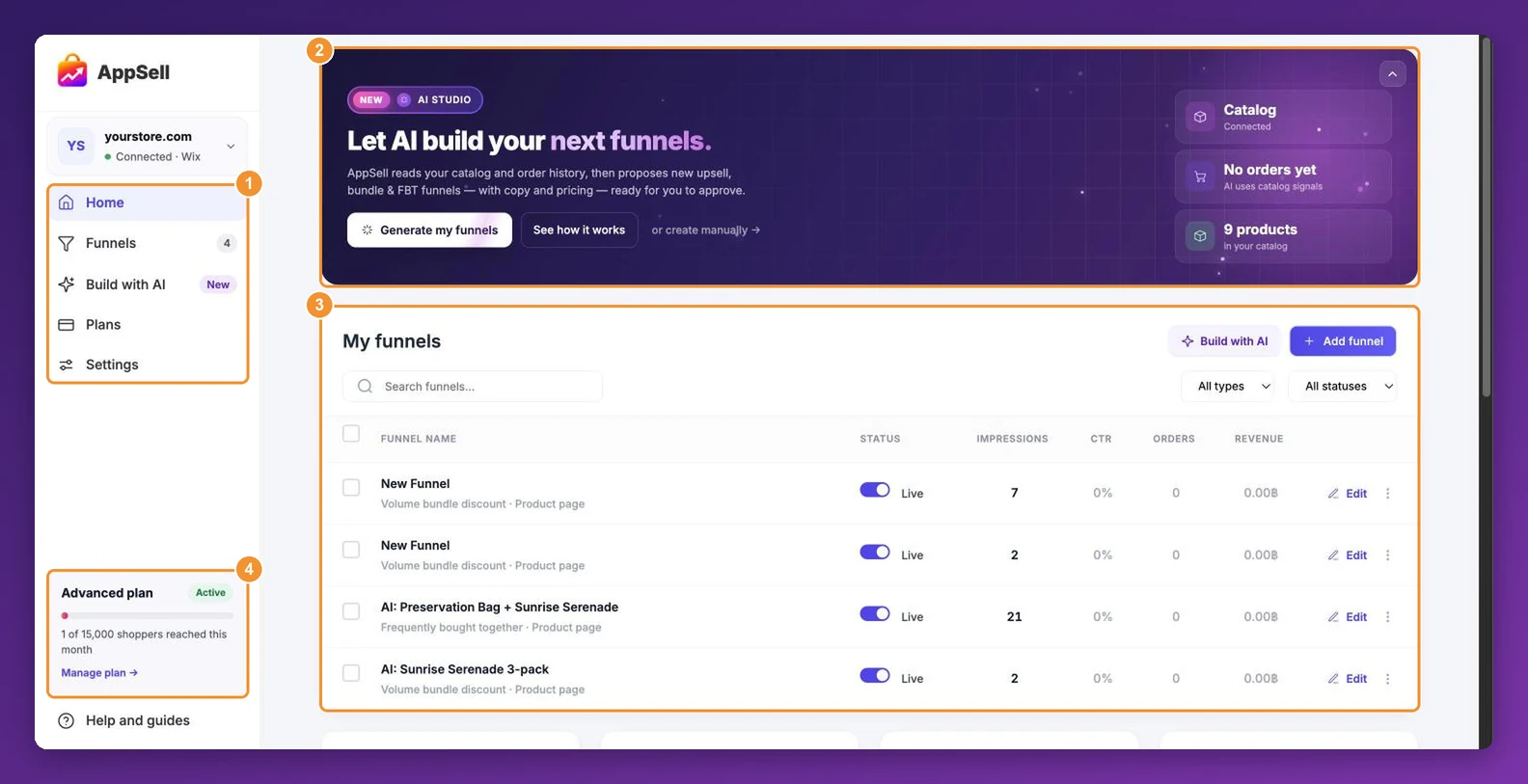
The sidebar
Home — this page: your funnels and results.
Funnels — opens the funnel builder to create a new funnel. The number shows how many funnels you have. Your list of funnels is on Home.
Build with AI (Wix) — let AppSell propose funnels for you. See the AI funnel generator.
Plans — compare plans and upgrade.
Settings — your store and account settings.
Help and guides — opens this help center.
Your store menu
Your store's name is at the top of the sidebar, with Connected when AppSell can reach your store. Click it for shortcuts:
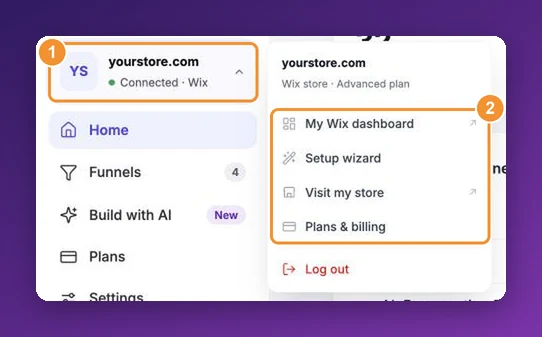
My Wix dashboard — opens your site in Wix (Wix stores).
Setup wizard — the steps for finishing AppSell's setup on your Wix site.
Visit my store — opens your storefront in a new tab.
Plans & billing and Log out.
AI Studio
On Wix stores, the banner at the top of Home is the quickest way to get funnels running: Generate my funnels reads your catalog (and your orders, once you have some) and proposes funnels for you to review. On the right it shows what it can read: your catalog, your orders and how many products you have. See how it works explains the steps, and or create manually opens the funnel builder. Use the arrow in the corner to shrink the banner.
My funnels
Every funnel you've created, with its type and page under its name, its Status (Live or Paused) and its results. From here you can:
Create a funnel with Add funnel or Build with AI.
Switch a funnel on or off with its Status toggle.
Open it with Edit (or click the row), or use the ⋮ menu to preview, rename, duplicate or delete it.
Search, filter by type and status, and drag rows to set which funnel wins when several match.
The details are in how to manage your funnels and which funnel shows when several match.
Your results
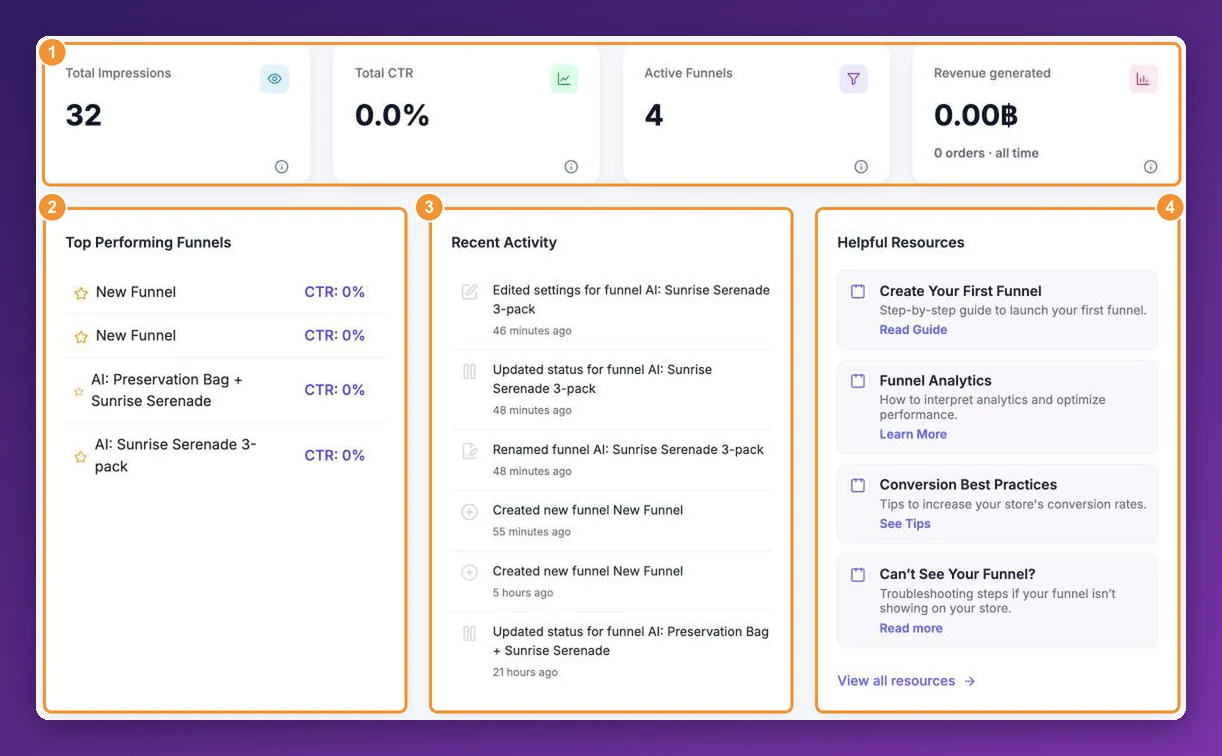
Total Impressions — how many times your funnels have been shown to visitors.
Total CTR — click-through rate: how often visitors interact with your offers.
Active Funnels — how many funnels are switched on.
Revenue generated — sales of the products your funnels offered, across every funnel since you installed AppSell (including ones you've since paused or deleted), with the number of orders below.
Top Performing Funnels lists your funnels by click-through rate, Recent Activity shows the latest changes to your funnels, and Helpful Resources links to guides.
To get more from these numbers, see understanding your funnel performance.
Your plan and usage
The card at the bottom of the sidebar shows your plan and how many shoppers you've reached in the current period, for example 1,240 of 15,000 shoppers reached this month. When you pass 80% of your limit on a paid plan it turns red with Offers pause at the limit. Click Manage plan or Upgrade plan to change plan. See how visitor credits are counted.
Settings
Settings shows your connected store and current plan, and lets you set a Notification email and your Default discount prefix — the start of the discount codes AppSell creates. See how discounts work.
Still stuck?
Tell support what you were doing and what happened instead — a store URL and a screenshot of the funnel settings usually resolves it in one reply.
Contact support