
How to get started with AppSell on Wix
Go from install to your first live offer in about ten minutes: finish setup in Wix, publish, create a funnel, test it and watch the results.
Welcome to AppSell. This guide takes you from installing the app to your first offer showing on your Wix store — it takes about ten minutes. Using Shopify or WooCommerce? Start with AppSell on Shopify or AppSell on WooCommerce.
Watch: get started in 90 seconds
1. Install AppSell
Add Upsell & Cross Sell By Appsell to your site from the Wix App Market and approve the permissions. The AppSell dashboard opens when it's done. See how to install AppSell on Wix. New stores start with a 3-day free trial.
2. Finish setup in Wix
Wix needs one more step to add AppSell to your site:
In your Wix dashboard, go to Apps → Manage Apps.
Find AppSell (it may be under Action required) and click Complete Setup.
Click Add to Site if Wix asks. This adds the AppSell block, which places offers on your pages and lets AppSell add products straight to the cart.
More detail: how to activate the AppSell block. On Wix Studio this step matters even more — see Wix Studio vs Wix Editor.
3. Publish your site
Open your site in the editor and click Publish. AppSell's offers only reach shoppers on your published site.
4. Create your first funnel
A funnel is one offer: which products to offer, where, to whom, and how it looks. There are two ways to create one:
Let AI do it. On your dashboard, click Generate my funnels. AppSell reads your catalog and proposes funnels you can approve. See the AI funnel generator.
Build it yourself. Click Add funnel and choose a type. Follow create your first funnel.
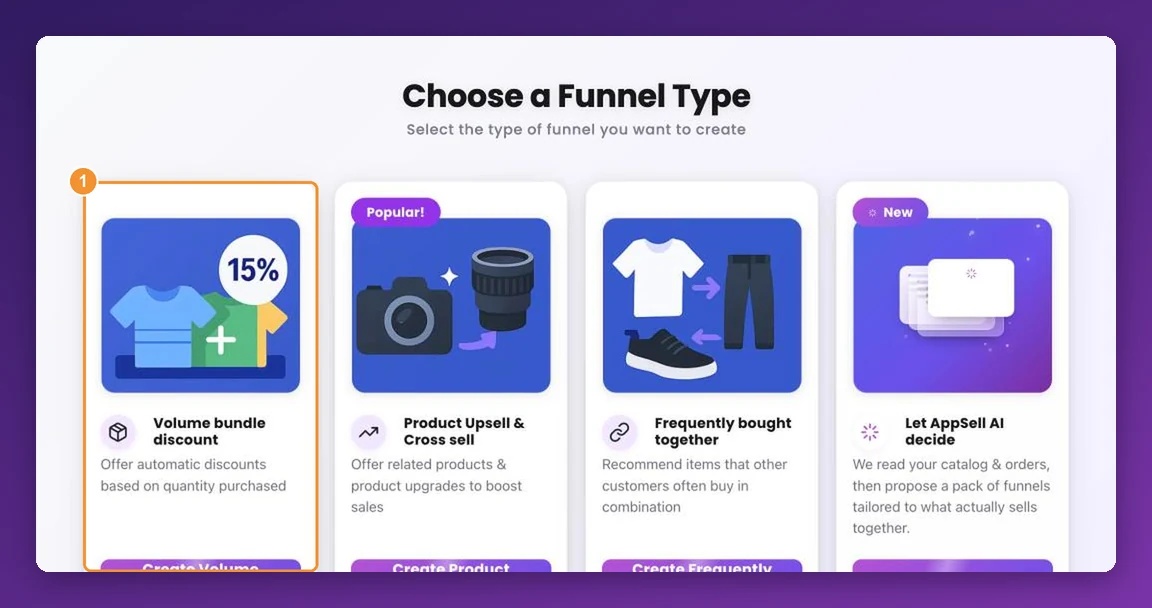
Not sure which to start with? Volume bundles (buy more, save more) and frequently bought together suit almost any catalog. Cart offers are popular too — see cart and side cart offers.
5. Test it on your store
Open the page where the offer should appear, in a private browser window, and check that it shows and adds to the cart. See how to preview and test a funnel. If it doesn't show, the troubleshooting guide covers the usual causes.
6. Watch the results
Your dashboard shows impressions, click-through rate and the revenue your offers bring in, funnel by funnel. See your dashboard explained.
What to do next
Make the offer match your brand: design your offers.
Add a reason to act now: a discount or a countdown timer.
Choose a plan before your trial ends: plans and billing.
Questions? Contact our support team — we're happy to help you set up your first offer.
Still stuck?
Tell support what you were doing and what happened instead — a store URL and a screenshot of the funnel settings usually resolves it in one reply.
Contact support